Prismatic Software Editorial Team
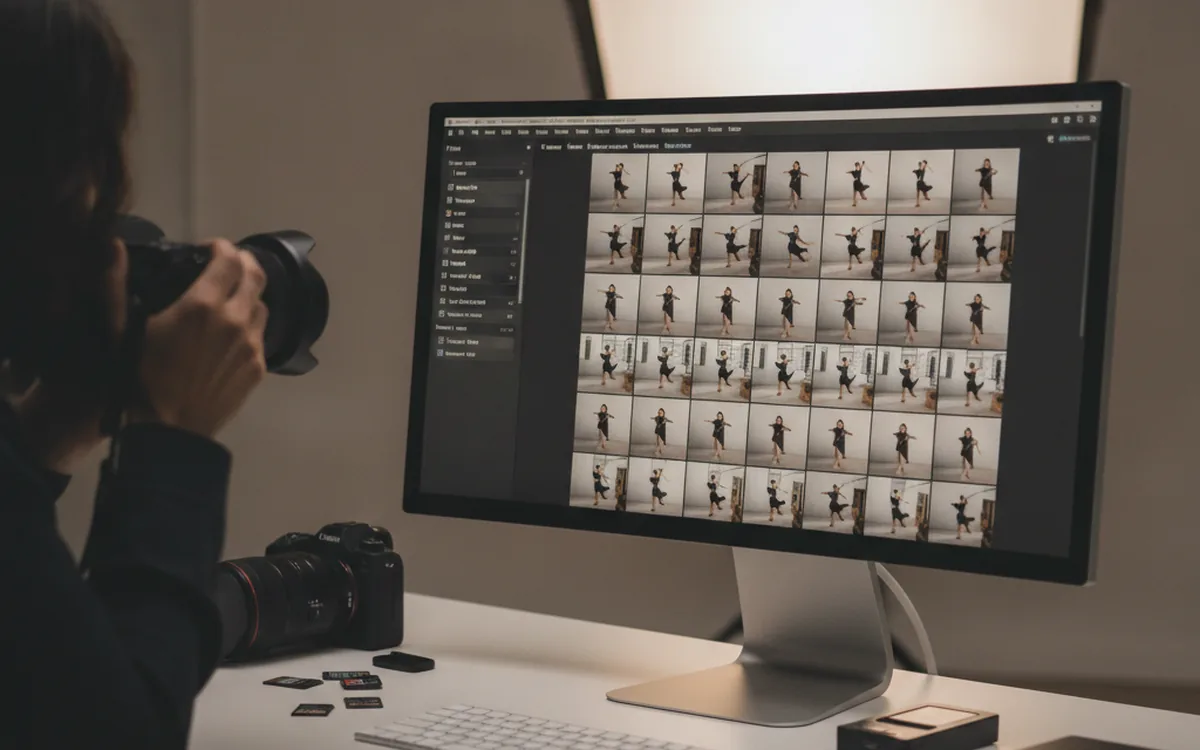
Adobe's November Lightroom release, dated November 10, lets Lightroom Classic filter incoming photos before they ever hit the catalog, recognizing in-camera star ratings, color labels, and locked/protected status at the import dialog, plus filtering by file type (Imaging Resource). The same release brings a redesigned, customizable masking panel, a vectorscope for checking skin tones and color balance, and an overhauled Assisted Culling model to Lightroom desktop (DPReview).
Shipping a culling or import-filter model that photographers trust enough to let it sort a paid shoot unattended is a narrowly scoped, data-heavy problem: training the model, tuning it against false rejects, and wiring it into a desktop UI without breaking existing workflows. That's the kind of focused build a vendor typically validates with an AI and ML data engineering team like YuSMP Group's before it ships as a bullet point in a release note.
Filtering before the import, not after
Lightroom Classic now sorts incoming photos before they reach the catalog, not after: it recognizes ratings, color labels, and protection flags a camera already wrote to the file, plus file type, and skips anything that doesn't match before a single frame touches disk (Imaging Resource). For anyone shooting tethered or reviewing in-camera, that turns the import step itself into a first culling pass, instead of a quality-of-life add-on bolted onto the end of the workflow.
That's the same instinct behind batch tools like PhotoBatch: push the repetitive sorting and conversion work as early in the pipeline as possible, so the time spent per frame later on editing, exporting, and delivering only happens on frames that actually made the cut.
Assisted Culling gets a depth-aware upgrade
On the desktop side, Adobe improved Assisted Culling's accuracy on shallow depth-of-field shots, cutting false rejections of photos with intentional background blur, and added a new Depth Range Masking tool that builds a depth map of the scene so edits can target a specific distance band without manual masking (DPReview). Culling scores now also recalculate after an edit, instead of staying fixed to the original capture.
Depth-aware masking and culling both depend on the same underlying signal: a model estimating distance or sharpness per pixel. That overlap is why the two features landed in the same release rather than as separate projects.
Why pre-import filtering is the harder engineering problem
Pre-import filtering has a much less forgiving failure mode than post-import culling. A culling model that runs after import can flag the wrong frame and a photographer just un-rejects it later; a filter that runs at import time has almost none of that slack. Miscategorize a file type or misread a protection flag, and a frame either never reaches the catalog or gets imported when it shouldn't have, with no easy undo once the rest of the session has moved on. Getting that reliability bar right against camera metadata that varies by manufacturer and firmware version is a data-engineering problem as much as a UI one, and it's the kind of scoped, testable build teams validate independently before folding it into a flagship release.
The bottom line
The louder feature in this release is Assisted Culling's accuracy bump, but the import-time filter is the one that changes workflow shape: it moves sorting earlier, onto metadata the camera already wrote, instead of leaving it entirely to a post-import AI pass. Expect other desktop photo tools to follow the same pattern: push triage as early into the pipeline as the file format allows.