Almost everyone has a folder named something like “Photos_to_sort” or “New Folder (3).” It holds shots from three phones and two cameras, scans of a family album, and exports from messaging apps. Some files are duplicates, and some are named DSC_0001, except there are several DSC_0001 files and they’re all different.
A work archive looks much the same, only the stakes are higher: product shots, event coverage, source images for the website. When finding the right frame takes half an hour and the backup exists only as a good intention, that’s no longer clutter. It’s a risk.
The good news is that an orderly archive rests on a handful of simple rules. You don’t need to invent them: just pick a system once and apply it to everything new.
Step One: Gather Everything in One Place
Sorting an archive piece by piece is pointless: you’ll clean up one drive and immediately find the same photos on another. So start with an inventory.
- List every place your photos live: computers, external drives, memory cards, phones, cloud storage, old DVDs.
- Pick one primary drive to hold the archive. Make sure it has plenty of free space to spare.
- Copy everything into a single inbox folder, such as “_inbox,” keeping the original subfolders intact. Don’t delete anything yet.
- Track down the stragglers. The image file search utility will scan your drives and surface photos hiding in unexpected places: Downloads, the desktop, inside project folders.
At this stage, the archive will get bigger, not smaller, because it now contains every copy. That’s expected. We’ll remove duplicates later, once everything is in one place and the comparison is fair.
Folder Structure: Dates Plus Events
The most durable system is built on dates. The year changes once a year, while topical categories like “Nature” or “Family” start overlapping within a month: where do you put the family out in nature?
A practical setup looks like this:
- top level: the year, for example 2024;
- second level: the start date and the event, for example 2024-07-15 Yosemite or 2024-11-03 Fall Catalog;
- inside an event, subfolders as needed: RAW, JPEG, Selects, Print.
The year-month-day format isn’t pedantry: it makes folders sort chronologically in any file manager on their own. A name like “07-15-2024” sorts by month first, so trips from different years get shuffled together.
What to Do With Photos That Aren’t Part of an Event
Everyday phone shots don’t need to be scattered across made-up events. Create monthly folders within each year, such as 2024-03 Misc, and put everything there that doesn’t add up to its own story. Scans of old prints are easiest to keep in a separate branch labeled with the scan date and an album description, with the approximate year the photo was taken in the name.
Renaming Rules and the Role of EXIF
A camera-generated file name says nothing about the photo and isn’t unique: the counter resets, different cameras produce the same names, and copying from a phone adds “copy” and “(1).” A good name has three parts: date, short description, and number.
For example: 2024-07-15_yosemite_0042.jpg or 2024-11-03_fall-catalog_0007.nef. A name like this sorts by time, reads without a viewer, and stays unique even when the file is pulled out of its folder.
- Take the date from EXIF, not from the file’s modified date. The file date changes when you copy it, but the capture date in the metadata stays put.
- Write descriptions in plain ASCII, lowercase, with no spaces. That way the name won’t break on another operating system, inside a ZIP archive, or when uploaded to a server.
- Pad numbers with leading zeros so that 0010 comes after 0009, not after 0001.
- Rename RAW and JPEG versions of the same frame in a single pass so the pairs don’t drift apart.
Batch renaming isn’t a luxury here; it’s the only sane approach. BatchRename applies a name template with a counter to an entire folder at once, so five hundred photos get renamed in a single operation. If the template pulls the date from the file rather than from EXIF, first check that the file dates didn’t get scrambled during copying.
What Else to Know About EXIF
Besides the date, the metadata stores the camera model, shooting settings, image orientation, and, on phones, often GPS coordinates. Keep two things in mind. First, camera clocks are often set wrong, especially after a battery change or a trip across time zones: if two cameras covered the same event, sync their times using a shot of the same moment and shift the dates before renaming. Second, before posting photos publicly, check that they don’t still carry the coordinates of your home.
Duplicates: Find Them and Decide What to Keep
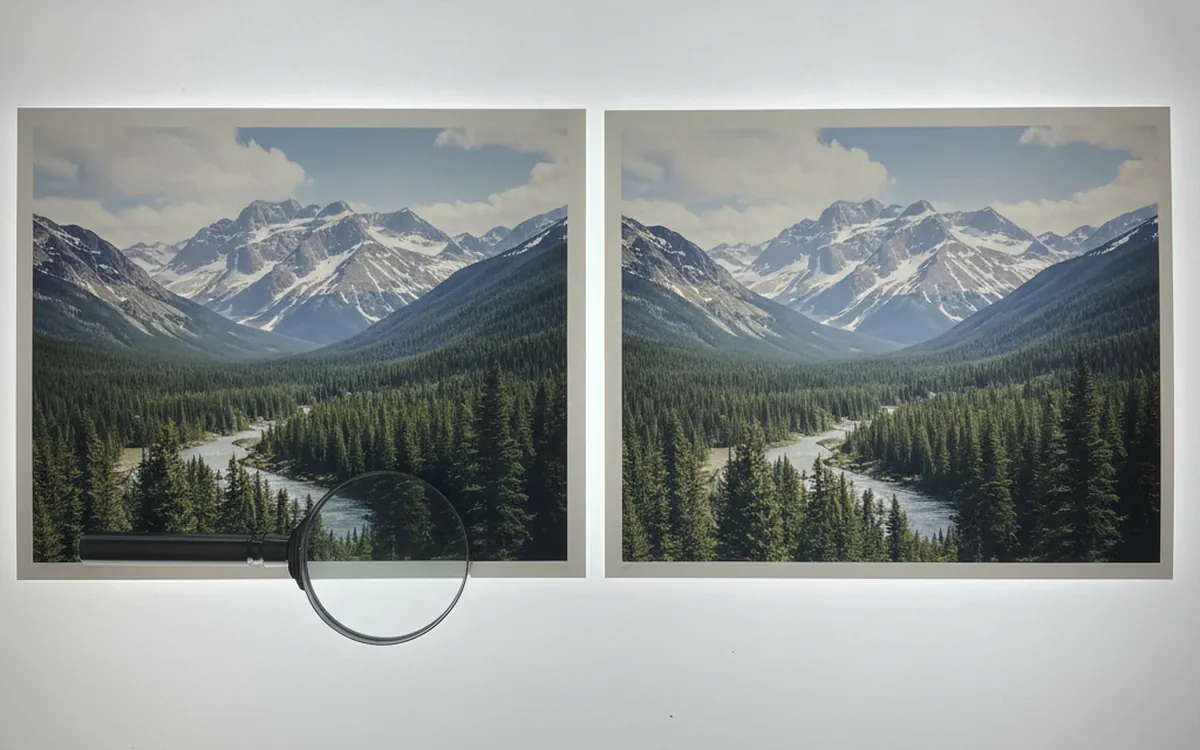
Once everything is gathered in one place, there are usually plenty of duplicates. Some are exact: the same file copied twice. Others are near-duplicates: a downsized copy for email, a rotated version, a frame re-saved by a messaging app with different compression. Searching by name and size only catches the first kind.
DupDetector compares the image content itself, so it finds both copies with different names and recompressed versions. Here’s the workflow:
- First compare the inbox folder against the part of the archive you’ve already sorted, then compare the inbox folder against itself.
- From each group of similar images, keep the file with the highest resolution and the least compression, and if there’s a RAW file, keep the RAW.
- Don’t delete right away. Move the flagged duplicates to a “_to_delete” folder and wait until you’re sure nothing valuable ended up there.
Practical tip: remove duplicates before you set up backups, not after. Otherwise every extra copy gets multiplied across two or three more drives, and you’ll have to clean up everywhere.
Backups With the 3-2-1 Rule
An organized archive is worth more than a messy one, and losing it hurts more. The classic 3-2-1 rule goes like this: three copies of your data, on two different types of media, with one of them stored offsite.
- Three copies: the working archive on your primary drive plus two more.
- Two types of media: for example, your computer’s internal drive and an external drive or a NAS. Two partitions on the same drive count as one copy.
- One copy offsite: cloud storage or a drive kept at a relative’s house or another office. Fire and theft don’t pick which drive to take.
Two things are often overlooked. Sync is not a backup: if a file is accidentally deleted or corrupted, sync will faithfully replicate that on the other side. You need a backup with version history, or at least a drive that’s only connected while the backup runs. And backups need to be tested: every few months, open a dozen random files from each copy and make sure they actually open.
The Bottom Line
An orderly photo archive comes down to a few decisions made once: everything in one place, folders by date and event, names built from date, description, and number, duplicates removed before backing up, and backups that follow the 3-2-1 rule. Batch tools take care of the routine work; all you have to do is stick to the system whenever a new batch of photos comes in.