Photos are the one kind of data most people can’t recreate. Documents can be re-downloaded and apps reinstalled, but the birthday you shot in 2014 exists only as the files you kept. That’s why the 3-2-1 rule has outlived several generations of storage technology: it doesn’t depend on any particular drive or service, only on redundancy and distance.
The rule itself fits on a sticky note: keep three copies of your data, on two different types of media, with one copy offsite. The details are where archives are actually lost, so let’s go through them.
What Counts as a Copy
Your working archive on the computer is copy number one. You need two more, and each has to be able to survive on its own.
- A second partition on the same drive is not a copy. When the drive fails, both go with it.
- RAID is not a copy. A mirrored pair protects against a single drive failing, but it faithfully mirrors an accidental deletion, a corrupted file, or ransomware.
- A sync folder is not a copy either, at least not on its own. More on that below.
- A copy you’ve never opened is a hope, not a copy. Verification is part of the rule, even if the sticky note leaves it out.
Choosing Drives and Media
The “two types of media” part exists so that one flaw, such as a bad batch of drives, a firmware bug, or a power surge, can’t take out every copy at once. In practice, that usually means an internal drive plus an external drive or a NAS, with the cloud as the offsite copy.
Hard Drives
Spinning hard drives are still the cheapest way to store terabytes of photos, and they hold data well when stored unpowered. Their weak point is mechanical: they don’t like being dropped, and every drive eventually wears out. Plan to replace backup drives every four to five years, before they fail, not after.
SSDs
SSDs are fast and shock-resistant, which makes them great for the working archive. They are less ideal as a backup that sits in a drawer for a year: flash memory stores data as electrical charge, and a drive left unpowered for long periods, especially somewhere warm, can lose data. If an SSD is your backup, plug it in regularly.
Optical Discs and Tape
Archival-grade optical discs and LTO tape are both legitimate options for people with large, slowly changing archives. They are write-once or offline by nature, which protects them from ransomware. The trade-off is convenience: restores are slow, and you need a working drive to read them years from now.
The Offsite Copy
Fire, flood, and burglary don’t pick which drive to take. An offsite copy is the only protection against losing everything in one place at once, and you have two practical choices.
Cloud backup runs automatically, which is its biggest advantage: the backup you don’t have to remember is the one that actually exists. Choose a service that keeps file versions and deleted files for at least 30 days, and check what happens to your data if you stop paying.
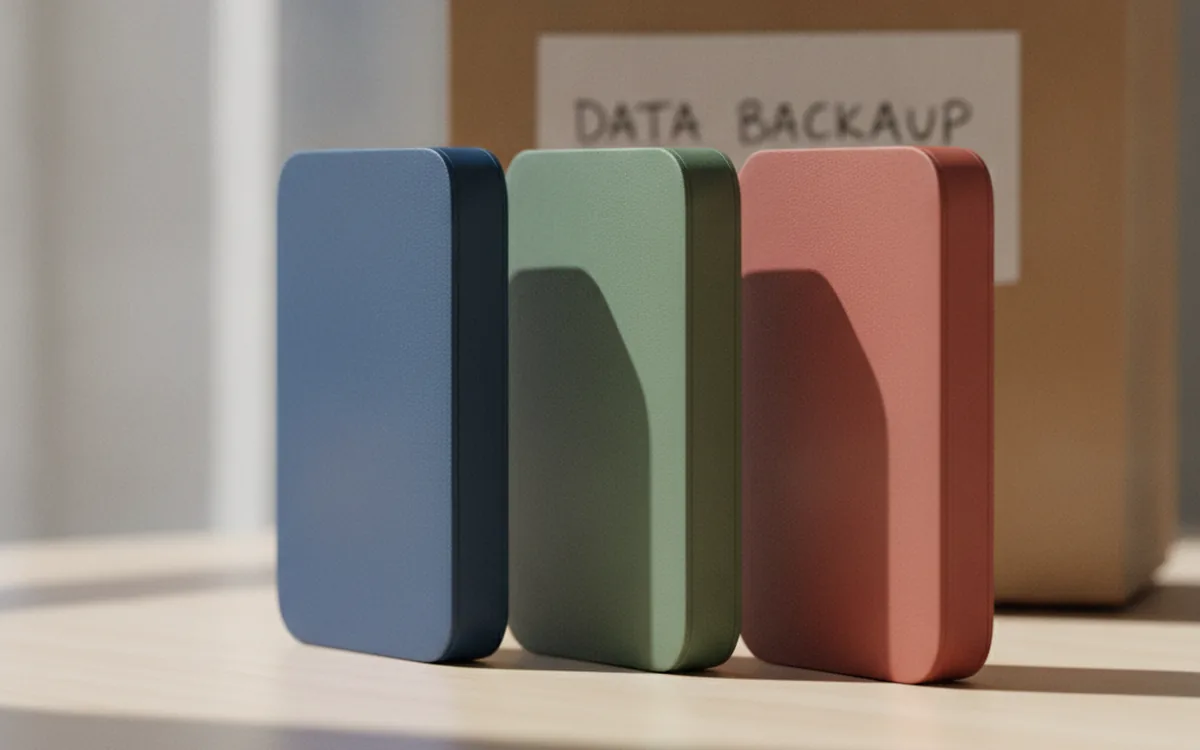
A rotating drive kept at a relative’s house or at work costs nothing per month and holds any amount of data. The catch is discipline. Two drives that swap places every month or quarter work far better than one drive that comes home “sometime.”
Whichever you choose, encrypt the offsite copy if it leaves your control. Cloud services encrypt data on their side, but a backup drive sitting in a relative’s closet is readable by anyone who picks it up unless you’ve turned on full-disk encryption such as BitLocker or FileVault. Store the recovery key with your restore notes, not on the drive itself.
Practical tip: put the date of the last backup on a label on each external drive. When you swap drives and see a label from eight months ago, you’ll know immediately that your offsite copy is stale.
Bit Rot and Checksum Verification
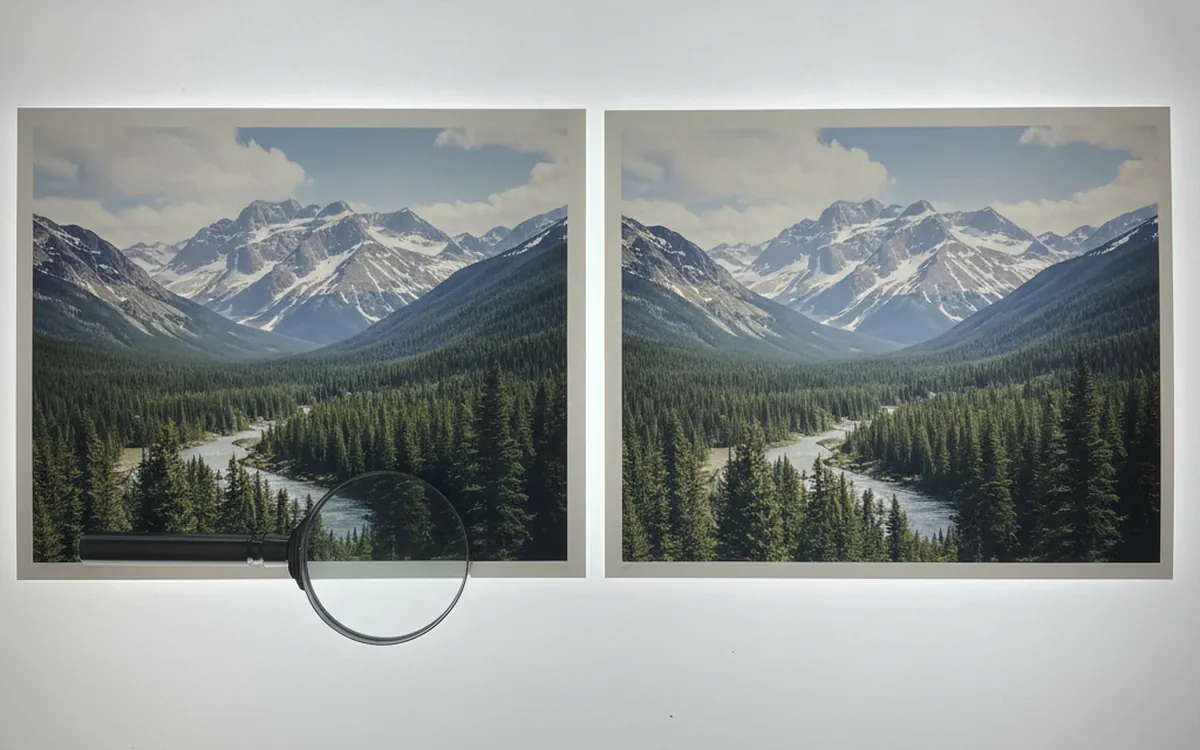
Drives don’t always fail loudly. Occasionally a file is quietly damaged: a flipped bit on a disk, a bad sector, an error during a copy. With photos, the result is often a JPEG that opens with a gray band across the bottom half or doesn’t open at all. If that damaged file gets backed up over the good version, the damage spreads to every copy.
A checksum is a short fingerprint calculated from a file’s content. If even one bit changes, the checksum changes. That makes it the most reliable way to prove that your backup still matches the original.
- When a year or event folder is finished, generate a checksum manifest for it using SHA-256. On Windows, PowerShell’s Get-FileHash can do it; on macOS and Linux, shasum -a 256 or sha256sum.
- Store the manifest inside the folder, so it travels with every backup.
- Periodically re-verify each copy against its manifest. Any mismatch means that copy has a damaged file, and you restore it from one of the others.
File systems such as ZFS and Btrfs store checksums for every block and can repair damage automatically when the data is mirrored. If you run a NAS that supports them, turn on scheduled scrubs. It’s bit rot protection you don’t have to think about.
Versioning vs. Sync
This is the most common misunderstanding about backups. Sync makes two locations identical. If you delete a folder by mistake, sync deletes it on the other side too. If ransomware encrypts your files, sync uploads the encrypted versions. Sync is great for having the same photos on your laptop and phone; it is not a backup.
Versioned backup keeps earlier states of your files. If something goes wrong on Tuesday, you can restore Monday’s version. For a photo archive, look for:
- retention of deleted files for weeks or months, not days;
- multiple versions per file, so an edit or corruption can be rolled back;
- at least one copy that is offline or immutable, such as a disconnected drive or a cloud bucket with object lock, so malware can’t reach it.
Before setting any of this up, clean the archive. Every duplicate you keep is copied three times and verified forever. Running the archive through DupDetector first removes extra copies of the same frame, including resized and recompressed versions, so your backups store each photo once.
The Yearly Restore Drill
A backup that has never been restored is untested. Once a year, pick a date you’ll remember, such as tax day or New Year’s week, and run a drill.
What to Test
- Restore one complete year folder from each backup to a scratch location, not over your archive.
- Verify the restored files against the checksum manifest.
- Open a random sample in a viewer, including RAW files, to confirm your software still reads them.
- Time the restore from the cloud. If downloading the whole archive would take two weeks, it’s better to know that now.
- Confirm you can still log in to the cloud account and that the recovery email and two-factor device are current.
Write Down the Procedure
Keep a one-page note explaining where the copies are, how to restore them, and where the passwords live. Store it where a family member could find it. An archive only one person knows how to restore isn’t fully backed up.
The Bottom Line
The 3-2-1 rule works when each part is taken literally: three independent copies, two kinds of media, and one copy far enough away to survive a disaster at home. Add checksums to catch silent corruption, choose versioning over plain sync, and restore something every year. The effort is a few hours annually, and it’s the difference between a scare and a loss.