PhotoBatch: scripted batch image processing
Convert, correct and rename hundreds of files in one run. Preview the script on a sample, then save it to reuse anytime.
A script you can save and run again
Drag commands into the list, set their parameters and save the script along with its input and output settings. A month later, the same job is one click.
- One file, a folder or a listRun a script on a single photo, a whole folder or any mix of files and folders.
- Input filtersPick files by type, date, size and aspect ratio.
- Multiple outputsTurn one source into, say, a thumbnail and a full-size copy.
- Rename on outputPrefix, suffix, auto-numbering and format conversion in the same pass.
Commands from the manual
The first twenty of 91. Each one is simple on its own; chained together they produce complex effects.
JPG, GIF, BMP, PNG, TIF, PCX, TGA, WMF, EMF and PSP, plus RAW files from Canon, Nikon, Kodak, Fujifilm, Olympus, Pentax and Sony cameras.
PhotoBatch works with single-frame 24-bit images. Animated GIFs and AVI video are not supported, by design, to keep things simple.
Four scripts people write first
Real jobs, each one a short script. Save it once and the next batch is a single click.
TIF masters stay untouched; light JPEG copies go to a parallel folder for everyday browsing.
One pass, two outputs: a 400 px thumbnail and a 1600 px full-size image with matching names.
Crop the scanner bed border, fix faded color and number the album pages in order.
Quick JPEG proofs from Canon, Nikon or Sony RAW files to send to a client before the real edit.
From install to your first batch
68 imaging commands and 23 input, output and execution commands. You only need a handful to start.
Frequently asked questions
Is PhotoBatch really free?
Yes. Use it at home or at work. It contains no ads, spyware or any other bundled modules.
Which systems are supported?
Windows 7, Vista, XP, 2000, NT4, ME and 95/98. On current versions of Windows it runs in compatibility mode.
Why use relative values instead of pixels?
A “resize to 50%” command works the same on a 6000-pixel photo and a 1200-pixel one. A percentage-based script never has to be rewritten for a new camera.
Can I check the result before running the batch?
Yes. Almost every command has a sample preview that shows how the image changes as you adjust the settings.
Is there a manual?
Yes, a detailed PDF manual. Install it with the program or get it separately.
Further reading
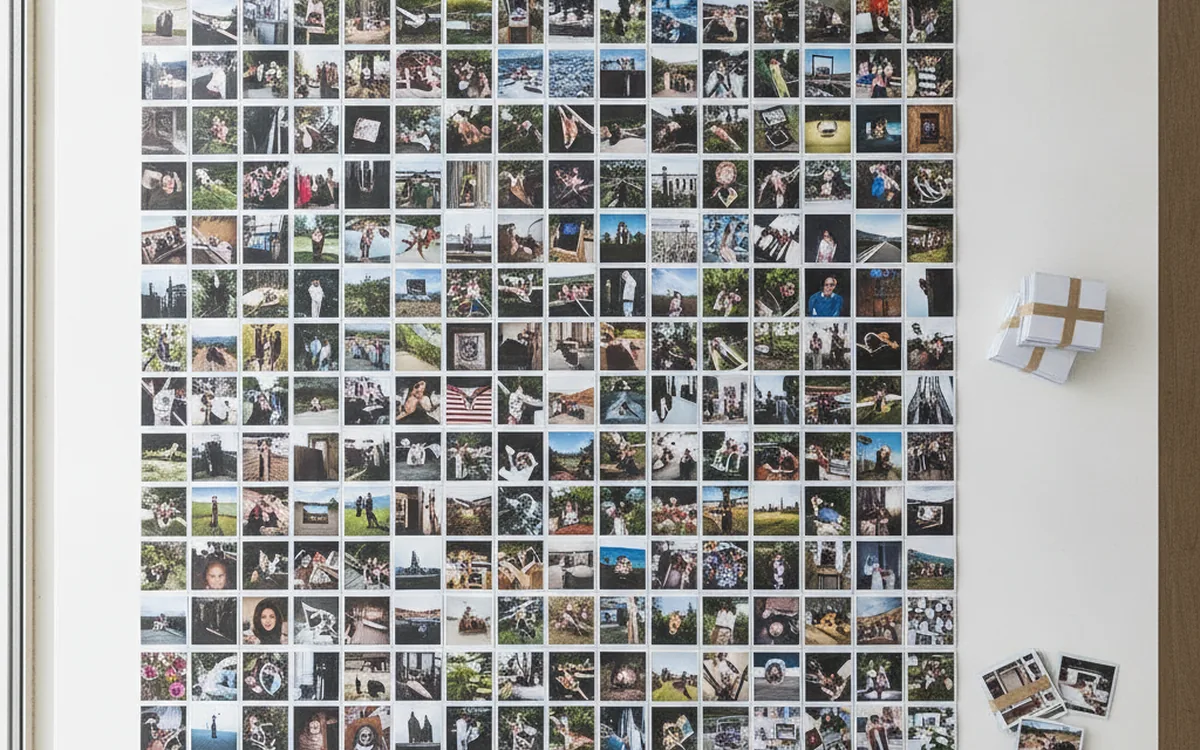
Batch Image Processing with Command Scripts
Define your edits once and apply them to hundreds of files without mistakes. How a command script works and which settings make it reliable.
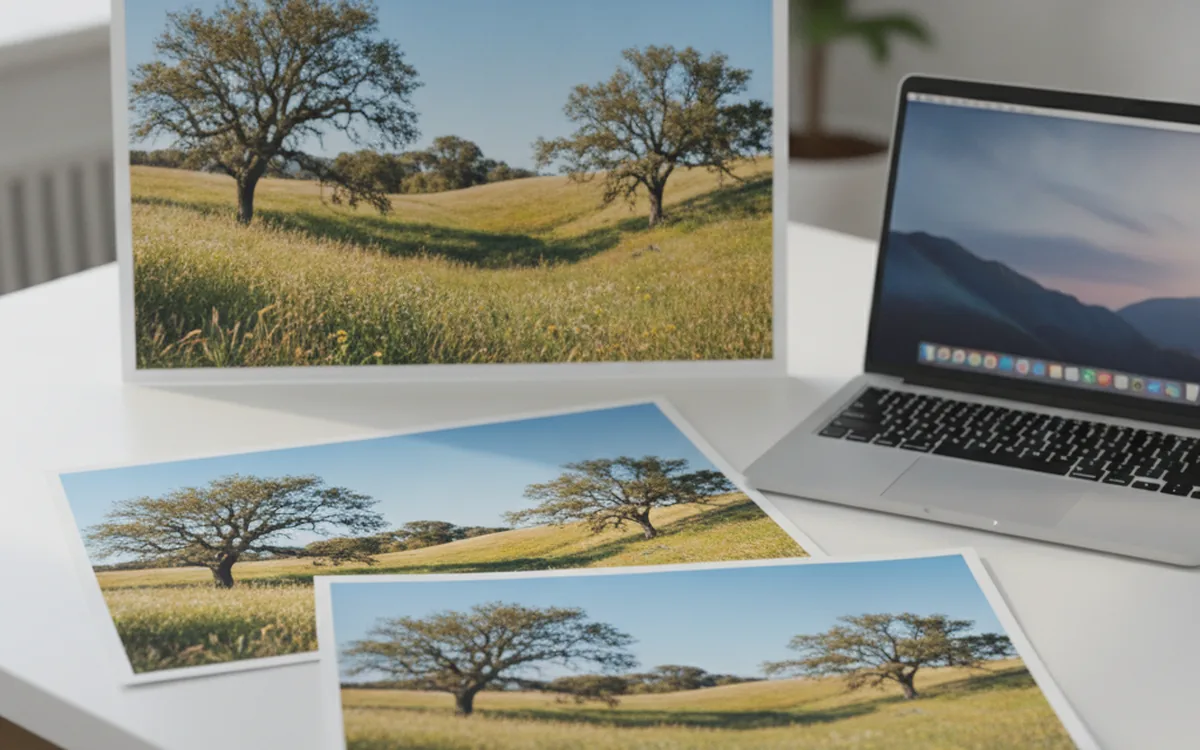
Resizing Images for the Web: Pixels, Filters, and Quality
Web images live or die by a few decisions: the right pixel size, a good resampling filter, light sharpening, and sensible compression. Here’s how to make them once and apply them to every file.
How to Bulk Rename Photos by Capture Date
Date-based file names turn any folder into a timeline. Here’s how to choose the scheme, avoid collisions between cameras, keep RAW+JPEG pairs intact, and make every rename reversible.
The rest of the Prismatic toolkit
Three tools cover a photo from start to finish: processing, archive cleanup and mosaic building.