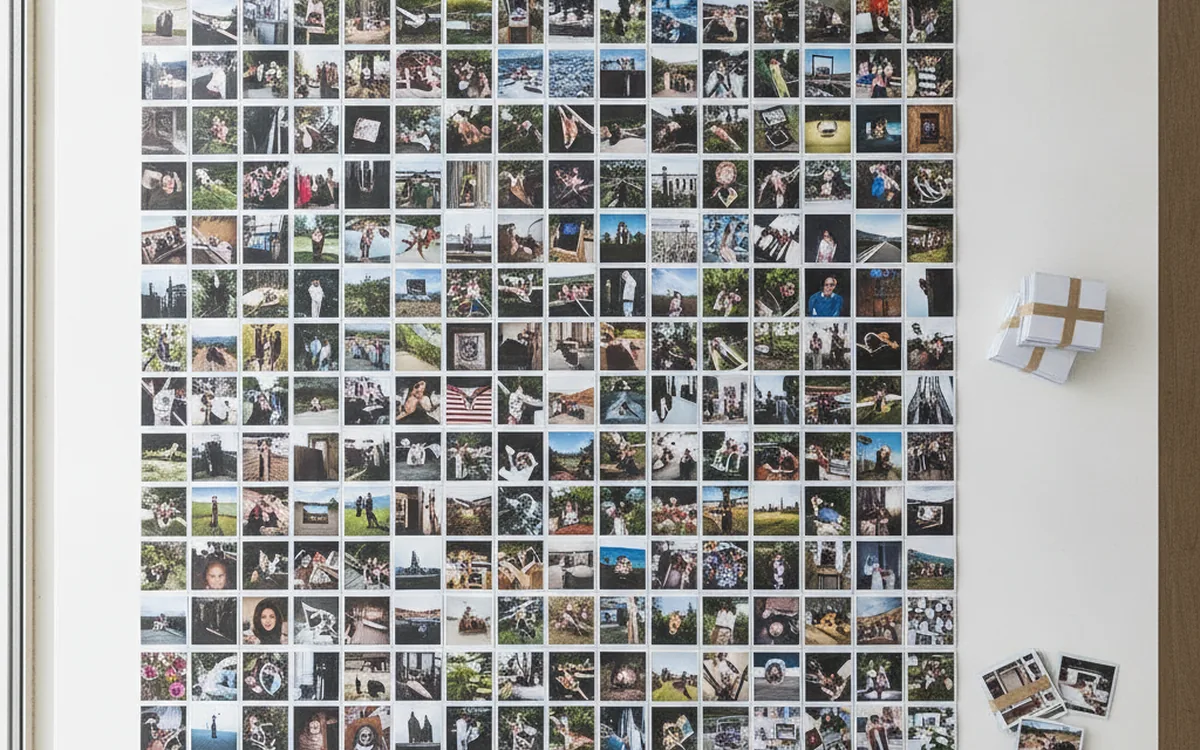
Camera file names were never meant for people. DSC_4417, IMG_0412, PXL_20240715_143205123: each one is a counter or a timestamp in a format chosen by a manufacturer, and the counters roll over at 9999. Put two cameras and a phone in the same folder, and you get a jumble that sorts by brand instead of by time, with name clashes waiting to overwrite each other.
Renaming by capture date fixes this once and for all. Files sort chronologically in any file manager, on any operating system, without a database or catalog. The idea is simple. The details are where renaming goes wrong, so this guide focuses on them.
Choosing a Naming Scheme
A good name is built from the date down to the second, in descending order of size. The most widely used pattern looks like this:
2024-07-15_143205_001.jpg
Year, month, day, then hours, minutes, seconds in 24-hour time, then a counter. Each part has a reason:
- Year first makes alphabetical order equal chronological order. Month-first formats shuffle years together.
- Zero padding (07, not 7) keeps July from sorting after October.
- No colons. Windows doesn’t allow them in file names, so 14:32:05 becomes 143205.
- Underscores between blocks keep the name readable and easy to split later if you ever need to parse it.
- A counter handles the case of several shots in the same second, which is more common than it sounds.
Should You Add a Description?
Some people append an event or subject: 2024-07-15_143205_001_yosemite.jpg. It helps when files get separated from their folders, for example when you attach them to an email. The downside is effort and inconsistency, since descriptions are typed by hand. A reasonable compromise is to put the description in the folder name and keep file names purely mechanical. If you do add text, stick to lowercase letters, digits, and hyphens. Spaces and accented characters cause trouble in scripts, URLs, and older software.
Keep the Original Name Somewhere
Once a file is renamed, the original camera name is gone, and that name is sometimes useful: a client refers to “DSC_4417” from a contact sheet, or you need to match a file against an old backup. Either store the original name in a metadata field during renaming or write it to a log, which we’ll come back to.
Where the Date Comes From
Use the EXIF original capture date, the field written by the camera when the shutter fired. File system dates are unreliable: they change on copy, download, or restore, and a renamer that falls back to them silently produces nonsense names.
Some files have no capture date at all:
- scans of prints and slides;
- screenshots and exported graphics;
- images saved from messaging apps, which often strip metadata;
- files processed by tools that dropped EXIF on re-save.
Don’t let these mix into the dated sequence with invented timestamps. Have the renamer skip them or route them to a separate folder, and handle them by hand. A scan of a 1987 print named with today’s date is worse than a file left with its original name.
Fix the Clock Before You Rename
If a camera’s clock was wrong, the names will be wrong too, and in a way that looks perfectly tidy. Correct time offsets first: shift every file from that camera by the known difference, then rename. Doing it in the opposite order means renaming twice.
Collisions When You Shoot With Several Cameras
A second is a long time. A burst at ten frames per second produces ten files with the same timestamp, and two photographers covering the same event will regularly fire in the same second. The counter solves this within one camera, but across cameras there’s a subtler problem: whose shot gets 001 and whose gets 002 depends on the order the renamer happens to read the files.
There are three common ways to handle it:
- Use sub-second precision. Many cameras record hundredths or thousandths of a second in a separate EXIF field. Adding it to the name, as in 143205-47, separates nearly all burst frames and keeps their true order.
- Add a short camera code. A suffix like _A or _X100 tells you at a glance which device took the shot and makes cross-camera collisions impossible.
- Let the counter run per second across all files, and accept that the order within one second is arbitrary. For family archives this is usually fine.
Whatever you choose, the renamer should never overwrite an existing file. If a target name is taken, it must increment the counter or stop with an error. Silent overwrites are the one renaming mistake that can’t be undone.
Keeping RAW and JPEG Pairs Together
Shooting RAW+JPEG gives you two files per frame, and often a third: an .xmp sidecar holding edits and keywords. These belong together, and their shared base name is the only thing linking them. If the RAW file becomes 2024-07-15_143205_001.cr3 while the JPEG becomes 2024-07-15_143205_002.jpg, the pair is broken, and your editor no longer treats them as one photo.
Pairs split this way for a predictable reason: the counter is assigned per file instead of per frame. The fix is to rename by group. The tool should find all files sharing the original base name (DSC_4417.ARW, DSC_4417.JPG, DSC_4417.xmp), compute one new base name from the capture date, and apply it to every member of the group.
Watch the sidecar naming convention as well. Some applications expect name.xmp, others name.ARW.xmp. A renamer that handles one style and ignores the other will orphan half your sidecars without any warning.
Practical tip: normalize extensions to lowercase while you rename. A folder holding both .JPG and .jpg looks harmless on Windows, but case-sensitive systems and web servers treat them as different, and filters that match only one spelling will quietly skip files.
Dry Runs and Undo Logs
Renaming thousands of files is fast, which is exactly why it deserves caution. A wrong pattern applied to an entire archive takes seconds to run and hours to untangle.
Always Preview First
A dry run shows the old name and the new name for every file without changing anything. Scan it for the usual suspects:
- dates in 1970, 2000, or another default year, which point to a reset camera clock;
- groups of files with suspiciously identical times;
- files that fell through to “no date” handling;
- pairs where the RAW and JPEG got different counters.
Then run the rename on a copy of a single folder, open the result in your usual viewer and editor, and only then apply it to the archive.
Write an Undo Log
Every rename run should produce a plain text or CSV log with two columns: the full old path and the full new path. It costs nothing, and it gives you three things. You can reverse the operation by swapping the columns. You can trace any file back to its camera name. And when a backup made before the rename turns up, you can match its files against the new names without guessing.
Keep the logs with the archive, not in a temp folder. If you use PhotoBatch for renaming as part of a processing script, save the script alongside the log, so six months from now you know not only what changed but why.
A Renaming Workflow That Holds Up
Putting it together, a reliable pass over a new batch of photos looks like this:
- Copy files from the cards into an inbox folder. Never rename on the card itself.
- Correct camera clock offsets and time zones.
- Set aside files without a capture date.
- Run a dry run with your naming pattern and review it.
- Rename by group, with collision handling and an undo log.
- Move the renamed files into dated event folders.
The Bottom Line
A date-based name turns any folder into a timeline, no catalog required. Use the EXIF capture date, not file dates; fix clocks before renaming; handle same-second shots with sub-seconds, camera codes, or counters; rename RAW, JPEG, and sidecars as one unit; and never run a rename you haven’t previewed and logged. Do it once properly, and every future import follows the same rules.