Prismatic Software Editorial Team
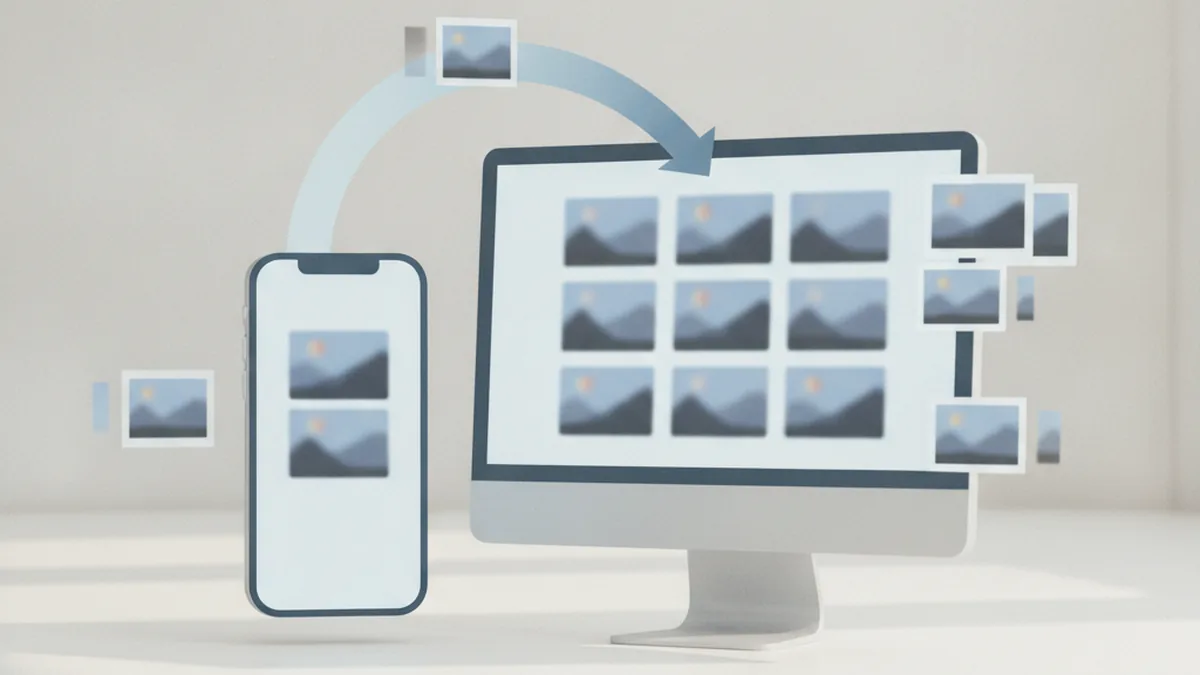
TL;DR: A companion app is not a copy of your desktop tool squeezed onto a phone — it's a thin client built around its own sync layer, data model, and conflict policy. Get the thumbnail-first data model and field-level conflict resolution right early, and the harder pieces (background transfer, push notifications) have something solid to attach to.
PhotoTile and PhotoBatch are desktop tools: batch jobs, full RAW decode, heavy processing, all running on a machine with real CPU and storage to spare. The natural next request from a studio using either one is a phone app — something to glance at the day's shoot, tag the keepers, kick off a batch job remotely, and get a notification when it's done.
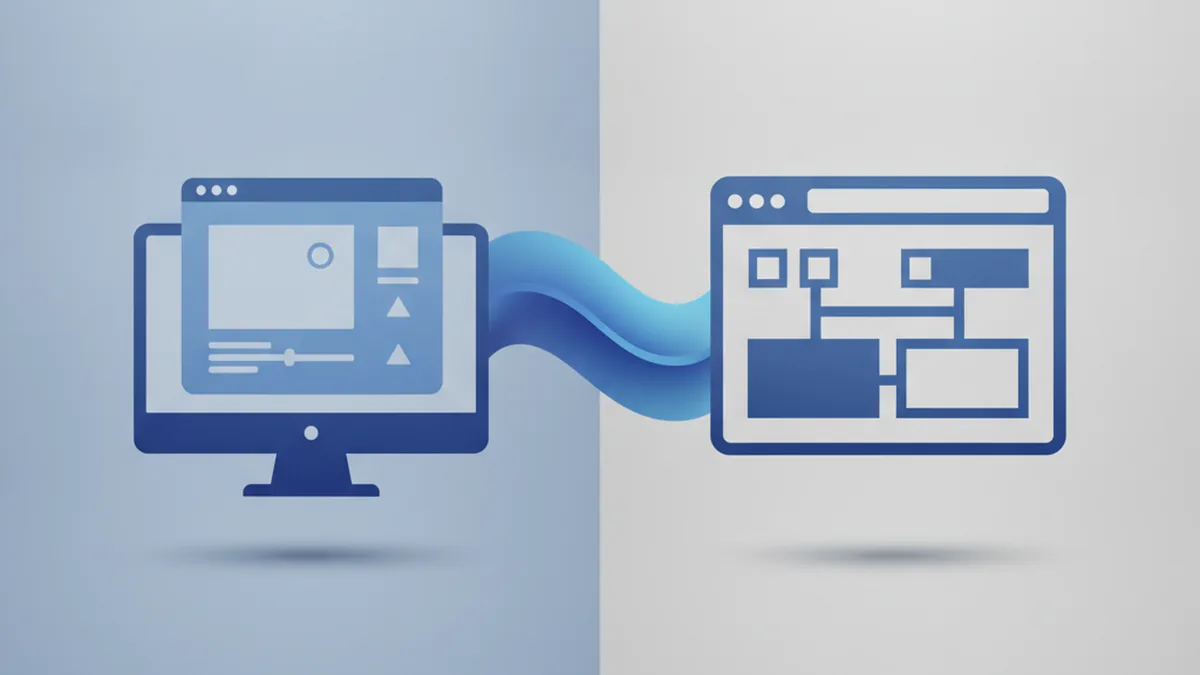
The mistake is treating that request as "port the desktop UI to a smaller screen." It isn't. A companion app has to solve a problem the desktop tool never had to: staying usefully in sync with a machine it isn't running on, over a network connection that isn't guaranteed. Studios without in-house mobile engineers typically bring in a dedicated team for iOS app development at YuSMP Group to get that sync layer right the first time, rather than discovering the hard way which shortcuts don't hold up.
Why a “Companion” App Is Not a Port
A port tries to replicate functionality. A companion app is scoped around what actually needs to happen on a phone, which is a much smaller list than what the desktop tool does.
What the Phone Actually Needs to Do
Review thumbnails from a recent shoot, tag and rate images, flag selects, trigger a batch job that already exists on the desktop, and get notified when that job finishes. That's it. None of this requires decoding a RAW file on the phone.
What Stays on the Desktop
Full RAW decode, demosaicing, color management, and any CPU-heavy batch processing stay exactly where they are. The phone triggers work; it doesn't do the work. Trying to replicate desktop-grade processing on-device adds enormous engineering cost for a capability almost nobody will use from a 6-inch screen.
Designing the Sync Layer
Once the scope is this narrow, the sync layer is the actual engineering problem. Three questions decide its shape.
Source of Truth — Desktop vs. Cloud vs. Device
Pick one source of truth and make everything else a cache of it. For a companion app, that's almost always the desktop library (or a cloud-synced version of it), never the phone. The phone's local copy of thumbnails and metadata is disposable — it can be wiped and rebuilt from the source of truth at any time without losing anything real.
Delta Sync vs. Full Resync
Full resync — re-pull everything every time — is simple to build and fine for a library of a few hundred images. It falls apart at studio volume, where a shoot can add thousands of files in a day and a full resync on every app launch becomes slow and wasteful of mobile data. Delta sync, where the phone only pulls what changed since its last known state, is the right default once a library grows past a trivial size; it just needs a reliable way to track "what changed," which is exactly what the data model below has to provide.
CloudKit vs. a Lightweight REST Sync Service
CloudKit gets you sync infrastructure, conflict-safe record storage, and push plumbing without standing up your own backend — a real advantage for a small team, with the trade-off that you're tied to Apple's ecosystem and its data model conventions. A lightweight REST sync service you control gives you platform independence (useful if Android support is ever on the roadmap) at the cost of building and running that infrastructure yourself. For a single-platform companion app with no near-term plan to support Android, CloudKit is usually the faster, cheaper path.
Data Model for a Thin Mobile Client
The data model is where a rushed companion app gets stuck later, because the shortcuts taken here are the hardest to retrofit.
Thumbnails and Metadata First, Originals on Demand
The phone's local store holds thumbnails and a metadata record (tags, rating, flags, file reference) for every image in scope. It does not hold the original RAW or full-resolution file unless the user explicitly asks to view or export one at full size. This keeps the phone's storage footprint small and sync fast, regardless of how large the underlying RAW files are.
Versioning Fields You Need From Day One
Every record needs a last-modified timestamp and a version or revision counter from the start, even if the first version of the app never looks at them. Bolting on versioning after the fact means reconciling a data model that was never designed to answer "which copy of this record is newer," which is the exact question conflict resolution depends on.
Handling Conflicts (Editor on Phone, Batch Job on Desktop, Same Photo)
Conflicts aren't an edge case in this architecture — they're a predictable consequence of having two active write paths to the same library.
Why Last-Write-Wins Is Usually Wrong for Photo Metadata
Last-write-wins sounds simple: whichever change has the later timestamp sticks, the other is discarded. For photo metadata, that's usually the wrong behavior. If a user taps a star rating on their phone at the same time a desktop batch job updates the keyword list on the same image, last-write-wins silently discards one of two unrelated, non-conflicting changes — a real loss of user input with no warning it happened.
A Practical Conflict Policy
Merge at the field level instead of the record level: if the phone changed the rating and the desktop changed keywords, apply both, because they touch different fields. Reserve a user prompt for the rare case where the same field actually changed on both sides — that's the only situation where a true conflict exists, and it's infrequent enough that asking the user to resolve it directly is the right trade-off against the complexity of automatic merge rules for that case.
| Scenario | Last-write-wins result | Field-level merge result |
|---|---|---|
| Phone changes rating, desktop changes keywords | One change silently lost | Both changes applied |
| Phone and desktop both change the same tag | One change silently lost | User prompted to resolve |
| Desktop batch job updates 500 records at once | Risk of clobbering recent phone edits in that batch | Per-field merge protects unrelated phone edits |
Background Transfer and Push Notifications
The two pieces that make a companion app feel reliable rather than fragile are both about handling the network gracefully.
URLSession Background Tasks for Large Originals
When a user does pull a full-resolution original, that transfer has to survive the app being backgrounded or the phone locking mid-download. iOS's background URLSession transfer APIs exist for exactly this — they hand the download off to the system, which continues it independently of your app's foreground state and wakes your app briefly to handle completion.
Push-Triggered Status Updates Without Draining Battery
Polling the desktop for batch job status from the phone is a battery drain and usually can't reach the desktop machine from outside the local network anyway. A push notification, triggered by whatever service is tracking job status, is both more reliable and cheaper on battery: the phone does nothing until there's something to report, then wakes briefly to show the result.
Table: Decision Points When Scoping a Companion App
| Aspect | Desktop-only-thinking risk | Right-sized decision |
|---|---|---|
| Image storage on device | Syncing full originals to the phone | Thumbnails + metadata by default, originals on demand |
| Sync strategy | Full resync on every launch | Delta sync once the library exceeds a trivial size |
| Conflict handling | Last-write-wins at the record level | Field-level merge, user prompt only on true conflicts |
| Processing location | Attempting RAW decode on-device | Phone triggers jobs; desktop does the processing |
| Status updates | Polling the desktop from the phone | Push notification from a service that tracks job state |
Testing a Companion App Against a Desktop Tool
Simulating Flaky Networks and Interrupted Syncs
A sync layer that only gets tested on a fast, stable Wi-Fi connection will have bugs that only show up in the field. Deliberately test with throttled bandwidth, dropped connections mid-sync, and the app backgrounded during a transfer — these are the conditions a phone encounters constantly and a desktop app never does.
Why You Need a Staging Environment That Mirrors Both Ends
Because conflicts depend on timing between two independent clients, they're hard to reproduce by testing the phone app alone. A staging environment that runs both a desktop instance and a phone instance against the same sync backend lets you deliberately trigger the field-level merge and true-conflict cases above, rather than hoping to catch them after they reach production.
When to Build This In-House vs. Bring In an iOS Team
None of the pieces above are exotic individually — sync, conflict resolution, background transfer, and push are all well-understood problems. What makes a companion app project risky is getting the data model and conflict policy wrong early, because both are expensive to change once real users have data syncing through them. Teams with in-house iOS experience can own this from day one; teams without it are usually better off bringing in a dedicated iOS team to design the sync architecture correctly before it's load-bearing, rather than retrofitting it after the first version ships with a last-write-wins shortcut baked in.
Frequently Asked Questions
Do I need a backend, or can the desktop app sync directly with the phone?
You can do direct peer sync over the local network for same-room use, but any sync that has to work when the phone and desktop aren't on the same network needs a cloud layer in between — either a managed service like CloudKit or a lightweight REST sync service you run yourself.
Should the companion app support offline editing?
For tagging, rating, and selection, yes — those are small, low-conflict changes that queue and merge cleanly. For destructive edits, treat the companion app as a trigger for desktop-side batch jobs rather than a second place to run heavy processing offline.
How much of the original RAW file does the phone actually need?
Almost none of it by default. A thumbnail and the metadata record cover review, tagging, and triggering jobs. Pull the full original only when the user explicitly asks to view or export it at full resolution.
What's the fastest way to prototype this before committing to full sync logic?
Build a read-only version first: thumbnails and metadata flow from desktop to phone with no writes going back. That validates the data model and transport before you take on conflict resolution, which is the hardest part.
Does this architecture work for Android too, or is it iOS-specific?
The sync layer, data model, and conflict policy are platform-agnostic. What's iOS-specific is the background transfer and push implementation — URLSession background tasks and APNs — which Android handles with its own equivalents.
How do push notifications work if the desktop app isn't always running?
The push has to originate from whatever is actually watching for job completion — usually a lightweight cloud sync service, not the desktop app itself. The desktop app reports job status to that service, which triggers the push independently of whether the desktop app is still open.