Prismatic Software Editorial Team
TL;DR: Batch photo workflow automation is software that moves hundreds or thousands of images through ingest, culling, editing, metadata handling, renaming, and export without a person touching each file. Built well, it runs as a queue-based pipeline with concurrency limits, retry logic, and format-aware conversion, not a single script assuming every batch will succeed.
A wedding studio delivering 2,400 frames from one weekend, or a product photography house turning around 600 SKUs a week, cannot review and export each file by hand. Batch photo workflow automation is the engineering discipline of building a tool that handles that volume reliably, with failures contained instead of corrupting the batch.
Off-the-shelf apps cover common cases well. Studios needing a custom format, a tighter delivery integration, or volume beyond desktop tools often specify a purpose-built pipeline, bringing in a partner such as the custom software development team at YuSMP Group to turn the workflow into a maintained service.
What Batch Photo Workflow Automation Actually Means
Batch photo workflow automation is the automated execution of a defined sequence of image-processing steps across a large set of files, triggered by an event — a new folder, an upload, a watch-folder write — rather than a manual click per file.
It differs from single-image editing in failure tolerance. One bad edit on one photo costs a redo. Automating a batch of 3,000 files means one bad assumption — a missing EXIF rotation tag, a corrupted RAW — can propagate across the run unless the tool isolates it. That isolation, not the editing logic, separates a reliable batch tool from a brittle script.
The Core Pipeline Stages a Workflow Automation Tool Must Handle
Every studio-grade batch tool moves files through the same six stages, each with its own error handling, not one monolithic function.

1. Ingest and Import
Files arrive from a card reader, a tethered camera, or a watch folder. Ingest should assign a unique identifier, verify the file isn't truncated (a common failure on slow card writes), and log the source so re-imports don't duplicate work.
2. Culling and Duplicate Detection
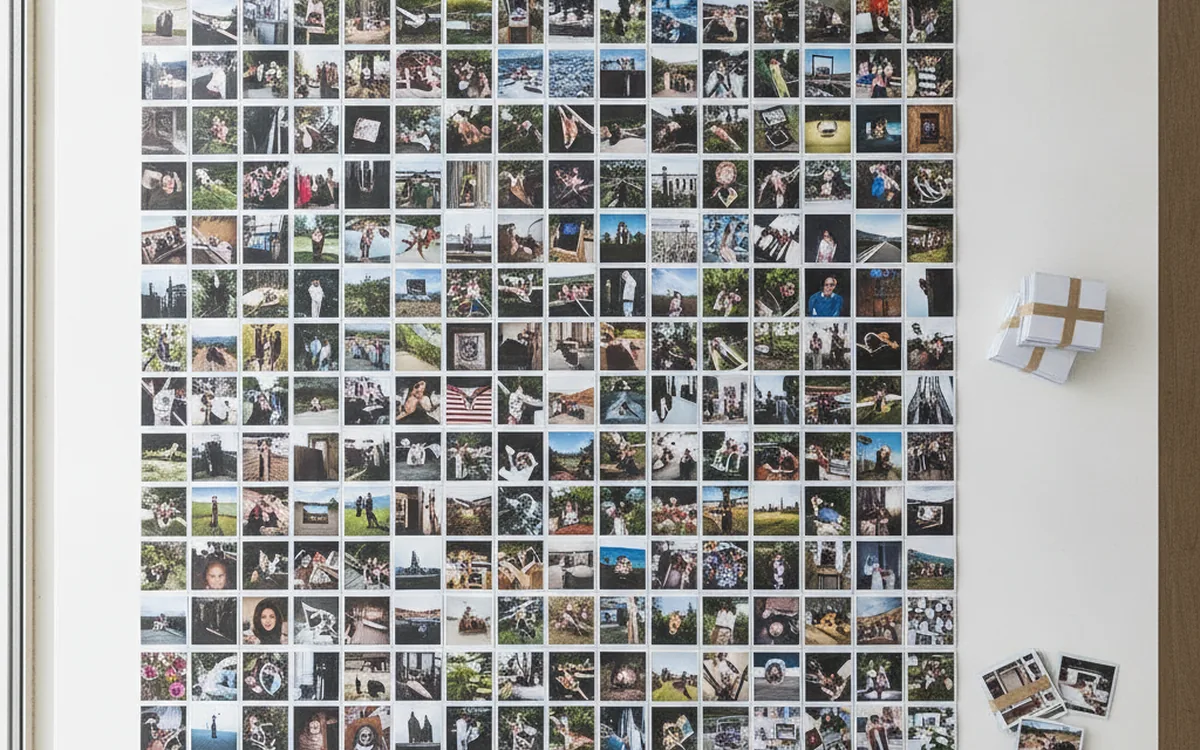
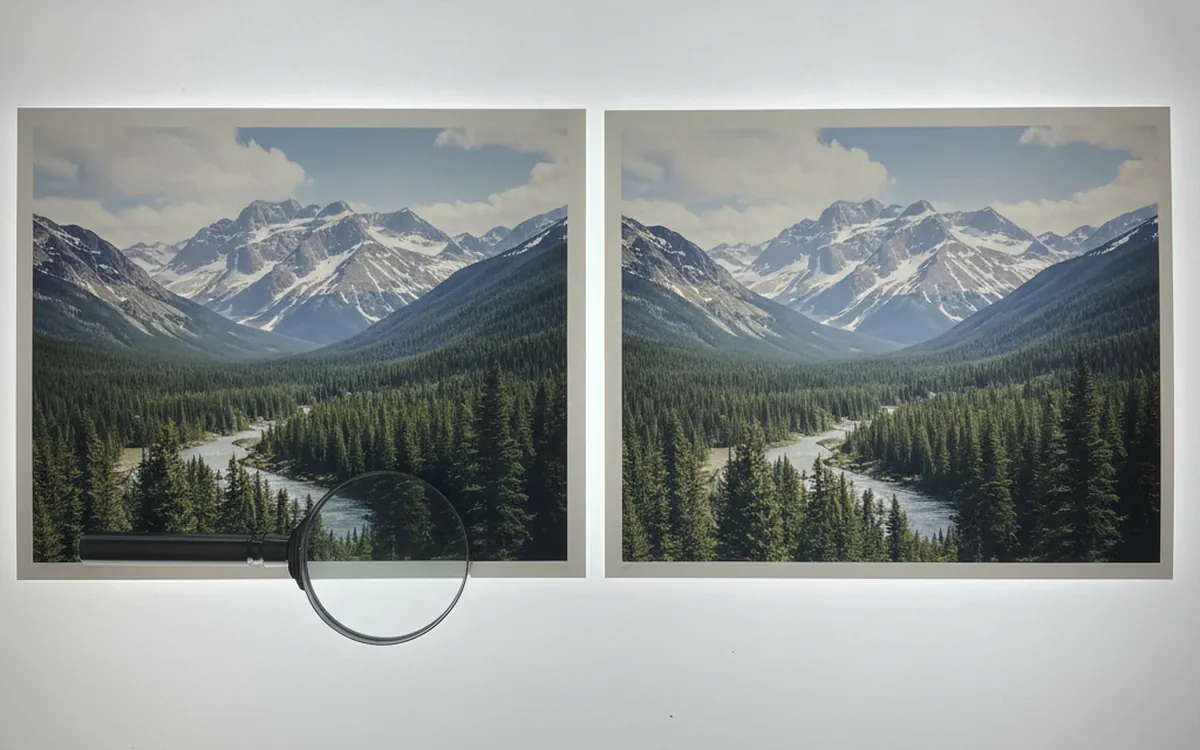
Before heavy processing, flag near-duplicates (burst sequences, focus-bracket sets) and let a human or a perceptual-hash pass mark keepers. No reason to batch-edit 40 near-identical frames when 3 will ship.
3. Batch Editing and Preset Application
Color correction, exposure normalization, and presets run against the culled set. The risk is order of operations — sharpening before a resize is wasted work, and grading after compression bakes in loss that should have been fixed first.
4. Metadata and EXIF/IPTC Preservation
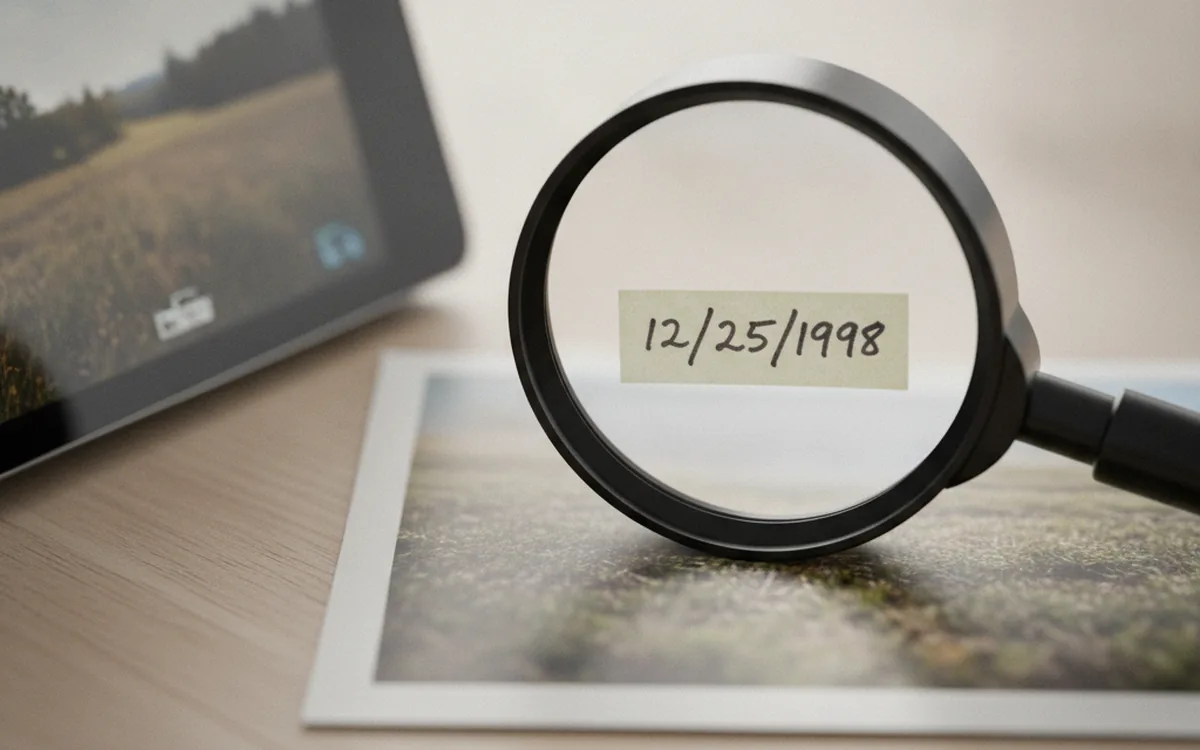
Capture date, camera settings, GPS, and copyright fields need to survive every transform, including format conversion. Losing EXIF on a RAW-to-JPEG pass is a common, easily-missed failure: the file still looks correct, it just lost data a client or DAM system expects.
5. Rename and Organize
Batch rename should apply a consistent convention (project code, sequence number, delivery tag) in the same pass as processing, and the operation has to be idempotent: running it twice should not shift sequence numbers or overwrite files.
6. Export and Delivery/Proofing
The final stage writes outputs — full-resolution masters, web-sized proofs, client-ready JPEGs — to their destinations. Multiple sizes should come from the same processed state, so a proof and a master never drift out of sync.
Why Studios Automate (and Why Off-the-Shelf Isn't Always Enough)
Manual culling, editing, and export at studio volume doesn't scale, and inconsistent manual work produces visibly different output session to session. A packaged desktop batch tool closes most of that gap for a solo photographer or a small studio with a standard format.
The gap appears when requirements step outside what a general tool anticipates: a proprietary RAW variant, a volume that saturates desktop hardware, or a delivery integration no consumer app ships a plugin for. At that point, the question is whether to configure an existing tool or build around the studio's exact constraints.
Architecture Decisions That Make or Break a Batch Tool
These decisions separate a tool that survives production volume from one that falls over on a real 5,000-file delivery.
Queue-Based Processing vs. Sequential Loops
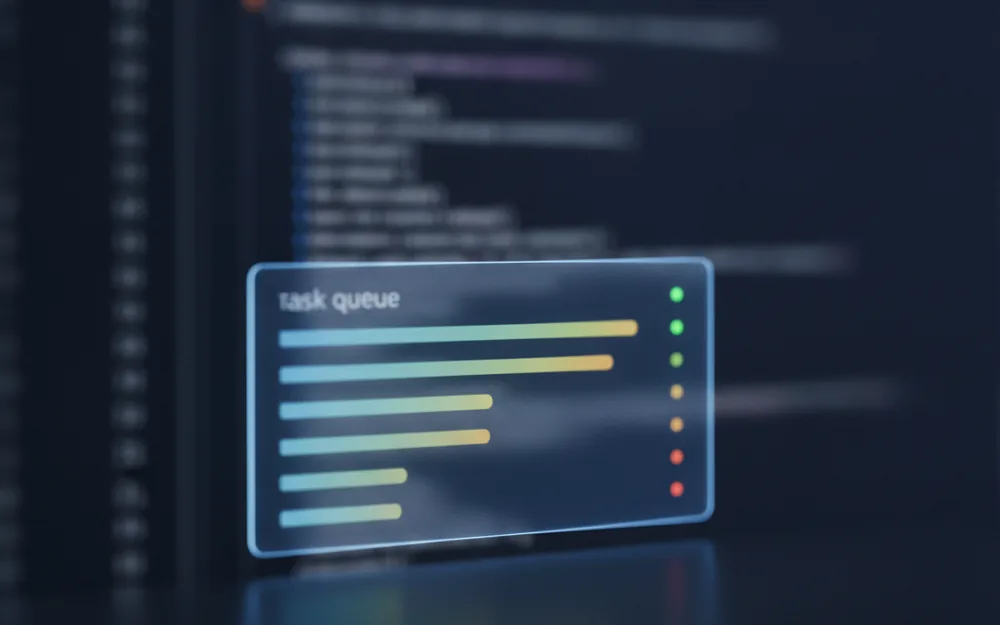
A sequential loop is simple to write and fails badly at scale: one slow file blocks everything behind it, and a crash midway loses track of what's done. A queue-based design — jobs enqueued, workers pulling from the queue, each job's state tracked independently — survives partial failures and can be paused or resumed without a rewrite.
Concurrency and Resource Limits
RAW decoding and large-image resampling are memory- and CPU-heavy. Running every job concurrently without a cap exhausts RAM and slows every job down. A fixed worker pool sized to available cores keeps throughput predictable.
Error Handling and Retry Logic
A batch of 2,000 files will include a few that fail for reasons unrelated to pipeline logic: a locked file, a transient disk error, a malformed header. Retry transient failures, quarantine repeats for review, and keep processing the rest — one bad file should never abort the whole run.
RAW/JPEG/HEIC Format Support and Conversion
Studios increasingly receive a mix of camera RAW formats, HEIC from phones, and legacy JPEGs in one intake folder. The pipeline needs explicit per-format decode paths, not one library call assumed to cover everything. The MDN image file type reference is a useful baseline for what to decode natively versus convert on ingest.
Manual vs. Automated Workflow — A Side-by-Side Comparison
| Factor | Manual workflow | Automated batch pipeline |
|---|---|---|
| Time for 500 images | Several hours of hands-on editing and export | Minutes of processing, hands-on only for culling |
| Consistency across files | Varies with fatigue and attention | Identical treatment applied to every file |
| Error risk | Missed edits, wrong export settings, overwritten originals | Isolated to flagged failures if retry/quarantine logic exists |
| Duplicate handling | Manual visual comparison, easy to miss | Perceptual-hash or checksum detection at scale |
| Scalability | Linear with headcount | Scales with worker concurrency, not headcount |
Common Engineering Pitfalls in Batch Photo Automation
- Losing EXIF on format conversion. A RAW-to-JPEG pass that drops capture date and camera metadata looks fine until a client or archive needs that data later.
- A non-idempotent batch rename. If rename logic recalculates sequence numbers each run, re-running it on a partial folder shifts every filename.
- No retry or resume after a crash. Without job-level state tracking, a crash at file 1,800 of 2,000 means starting over.
- Skipping deduplication before processing. Full edit-and-export on near-duplicate burst frames wastes compute earlier culling would have avoided.
How to Decide Between a Ready-Made Tool and a Custom Build
A packaged tool is usually right when volume is moderate, formats are standard, and delivery is a local folder or proofing gallery. A custom build earns its cost when volume regularly exceeds overnight desktop processing, when the studio needs a DAM or CRM integration no plugin supports, or when a non-standard format needs a decode path no off-the-shelf app ships. In practice, budget decides it: build the exception once hours lost working around a packaged tool's limits exceed the pipeline's cost.
Frequently Asked Questions
What is batch photo workflow automation?
Software that runs a defined sequence of import, cull, edit, metadata-preservation, rename, and export steps across a large set of photos without manual intervention per file.
How is batch automation different from manual editing in Lightroom or Photoshop?
Manual editing applies changes one file at a time; batch automation applies the same sequence to every file, with per-file failures isolated so they don't stop the run.
What file formats should a batch automation tool support?
At minimum, the camera RAW formats a studio shoots with, HEIC from phones, and standard JPEG/TIFF outputs, each with its own decode path.
How do you prevent duplicate files when automating a photo workflow?
Run perceptual-hash or checksum-based detection during culling, before expensive editing runs, so near-duplicate frames are flagged early.
Can batch automation preserve EXIF and IPTC metadata?
Yes, but only if every stage, including format conversion, is built to carry metadata forward — a common point where home-built scripts silently drop it.
When does a studio need a custom-built automation tool instead of an off-the-shelf app?
When volume outgrows desktop software, when a non-standard format needs a decode path no packaged tool ships, or when delivery must integrate with a specific DAM or CRM.
How much time does batch automation typically save versus manual processing?
For several hundred images, manual editing commonly takes hours; an automated pipeline processes the same set in minutes once culling is done.