Prismatic Software Editorial Team
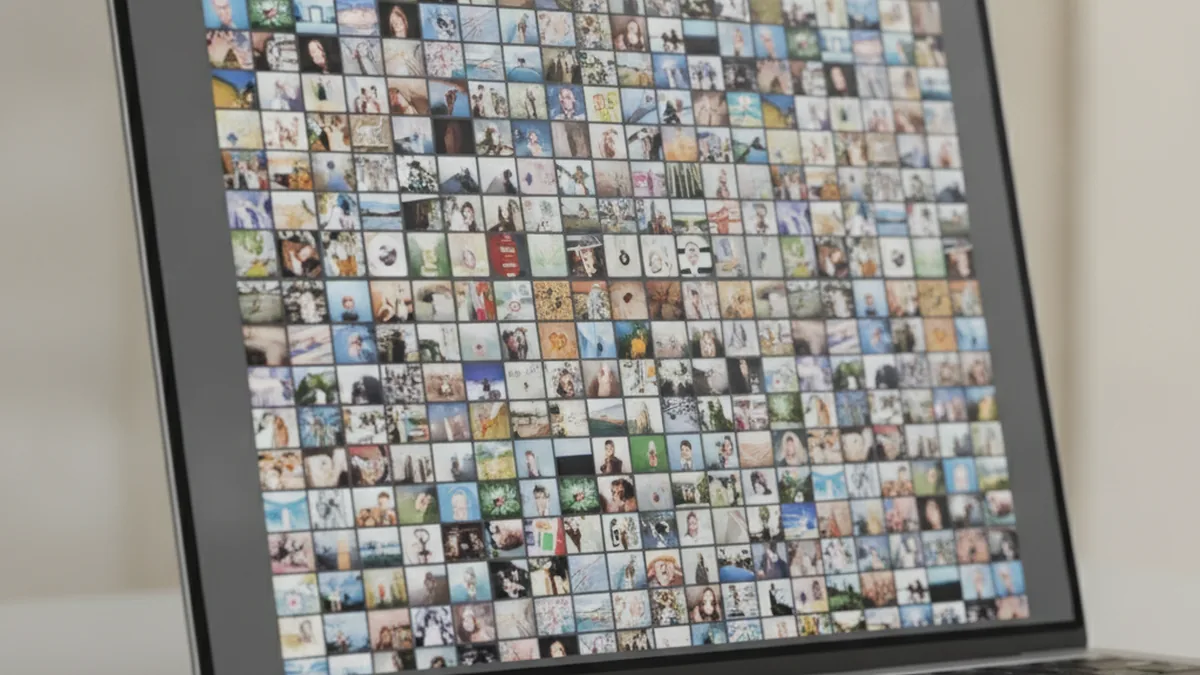
TL;DR: A Flutter photo-culling grid stays smooth past 10,000 thumbnails when three things are true together: the grid is built with GridView.builder so only visible cells exist, every thumbnail is decoded at a small cacheWidth/cacheHeight instead of full resolution, and the image cache has a bounded, deliberately sized memory budget. Drop any one of the three and the grid degrades, usually during fast scroll, which is exactly when a culling workflow needs it to hold up.
We build desktop batch-processing and duplicate-detection tools for photographers, and over the past few months we've been prototyping a Flutter companion app that lets a photographer triage a shoot (scroll through thousands of RAW-derived thumbnails and mark keepers) without being at the desktop machine. The first version worked fine with a few hundred test images and fell apart almost immediately once we loaded a real studio shoot: a wedding or sports import that routinely runs past 10,000 frames. That gap between "works in the demo" and "works on a real library" is where most of what follows came from.
If you're building something similar and don't want to rediscover these the hard way, bringing in a Flutter development team that specializes in performance tuning for the grid and memory-management layer specifically is usually faster than a general mobile team learning image-pipeline tuning from scratch, since the failure modes here are narrow but easy to miss until a real library exposes them.
Why Photo-Grid UIs Fall Over Past a Few Thousand Thumbnails
A photo grid looks like a simple layout problem, rows and columns of square images, but it's really a memory and scheduling problem wearing a layout's clothes. Every thumbnail that gets built as a widget also triggers an image decode, and every decode allocates a bitmap in memory that has to be held somewhere until it's evicted. At a few hundred images, none of this matters; the whole set fits comfortably in memory and the framework never has to make hard choices. At 10,000+, three things start competing for the same resources at once: the widgets the user can currently see, the images already decoded and cached from earlier scrolling, and the new images that need to decode as the user keeps scrolling. Get the lazy-building and cache-sizing wrong, and the UI thread starts doing decode and layout work it can't finish inside a single frame, which is what a user actually experiences as the grid "lagging."
Lazy-Building the Grid: GridView.builder, Not GridView
The single biggest mistake we made in the first prototype was passing a list of 10,000 widgets straight into a plain GridView via its children parameter. That constructor builds every child up front, which means every one of those 10,000 Image widgets gets created and starts a decode, whether or not it's anywhere near the viewport. GridView.builder fixes this by taking an itemBuilder callback and only constructing the cells currently near the visible viewport, plus a small lookahead window the framework manages automatically. Swapping the constructor was a five-line change that took our prototype from visibly stuttering on load to scrolling normally, and it's the prerequisite everything else in this piece assumes is already in place.
Decoding Smaller, Not Displaying Smaller: cacheWidth and cacheHeight
Fixing the builder got us scrolling, but memory climbed steadily the longer a session ran, and the app eventually got killed by the OS on a mid-range test phone. The cause was a classic one: our thumbnail source images were JPEGs exported around 1200px wide, and we were displaying them in roughly 150px grid cells without telling Flutter to decode them any smaller. Flutter's Image widget resizes what it displays independent of what it decodes, so a 1200px source decoded at full resolution and then squeezed into a 150px box still allocates the full-resolution bitmap in memory before it's ever drawn.
Why a Full-Res Decode Kills Memory Even if the Widget Is Tiny
A decoded bitmap's memory footprint is roughly width × height × 4 bytes (for RGBA), with no regard for how large the widget displaying it is. A 1200×800 JPEG decodes to roughly 3.8MB in memory regardless of whether it's shown at 800px or 80px wide. Multiply that by even a modest cache of a few hundred thumbnails in flight and you're well into the hundreds of megabytes before anything else in the app has allocated a byte. Setting cacheWidth and cacheHeight on the Image (or on the underlying ImageProvider) tells the codec to decode at that target size directly, so a thumbnail decoded at cacheWidth: 200 costs roughly the memory of a 200px-wide bitmap instead of the full source resolution, often a 20–30x reduction for a culling grid's typical cell size.
Caching Thumbnails Without Leaking Memory
Lazy building plus right-sized decoding solved our immediate crash, but a culling session is a long scroll in both directions. A photographer moves forward through a shoot, then scrolls back to compare a borderline shot against ones they already passed. That access pattern means you want recently-seen thumbnails to stay cached rather than re-decoding every time they scroll back into view, which is a caching problem distinct from the decode-size problem above.
cached_network_image + memCacheWidth for Remote/Synced Libraries
For thumbnails pulled from a sync service or a remote server rather than local disk, we use the cached_network_image package, which layers both a memory cache and a disk cache on top of the network fetch. Its memCacheWidth and memCacheHeight parameters do the same job as cacheWidth/cacheHeight on a plain Image (decode at a bounded size), while the package's disk cache means a thumbnail that's already been downloaded once doesn't re-hit the network on a second scroll past the same image, which matters a lot for a companion app that might be reviewing the same shoot over a flaky mobile connection.
Sizing Flutter's ImageCache for a Desktop-Scale Library
Flutter's built-in ImageCache (reachable via PaintingBinding.instance.imageCache) ships with conservative defaults (a 100MB memory ceiling and a 1,000-image count limit) that are tuned for a typical mobile app, not a library-scale photo grid. We raise maximumSizeBytes deliberately rather than removing the ceiling: an unbounded cache on a long culling session will happily grow until the OS intervenes. The number we settled on for mobile targets is in the 150–250MB range, which at our tuned decode size holds several thousand thumbnails comfortably; desktop builds, with more RAM to spend, can go higher. The point isn't to maximize the ceiling, it's to pick one your target device's memory budget can actually sustain for the length of a real session, then verify with the smallest decode size that still looks acceptable on screen.
Avoiding Jank During Fast Scroll/Culling Gestures
A culling workflow is scrolled fast and continuously. Photographers flick through a shoot looking for standouts, not reading each thumbnail carefully, and fast scrolling is exactly the condition that exposes any remaining slack in the pipeline. The two culprits we kept running into were decode work that wasn't actually offloaded from the UI thread (Flutter's image codec does most of the heavy decode work off the main isolate automatically, but custom pre-processing steps we'd bolted on for thumbnail overlays were not), and a cache eviction policy that was constantly discarding and re-fetching thumbnails during fast, one-directional scrolling because the lookahead window was too narrow for the scroll velocity. Widening the cache's effective window and moving our overlay compositing off the synchronous build path removed the remaining stutter during fast flicks, on top of the gains from builder lazy-loading and bounded decode size.
What We'd Do Differently Building a Companion App for PhotoTile/PhotoBatch
If we were starting the companion-app grid over today, we'd set cacheWidth/cacheHeight and a sized ImageCache ceiling from the very first prototype instead of treating them as a performance pass to do later, because by the time we hit the memory crash the grid, the overlay system, and the selection logic were all already built around full-resolution assumptions, and untangling that took longer than it would have to design it correctly from the start. For a team weighing whether to build this in-house or bring in outside help for just the grid-and-memory layer, this is the kind of narrow, well-defined piece where a specialized partner can move faster than a generalist mobile team still learning Flutter's image pipeline from scratch.
Checklist: 6 Things to Check Before Shipping a Photo Grid at Scale
- Confirm you're using
GridView.builder, not a fixedchildrenlist, so cells are only built near the viewport. - Set
cacheWidth/cacheHeight(ormemCacheWidth/memCacheHeight) on every thumbnail to match the actual grid cell size, not the source resolution. - Pre-generate server-side or on-device thumbnails where possible, rather than asking the client to decode full-resolution sources for every grid cell.
- Size
ImageCache.maximumSizeBytesdeliberately for your target device class instead of leaving the mobile-tuned default in place for a library-scale grid. - Test with a realistic library size, not a few hundred sample images. The failure modes above mostly don't appear until you're past a few thousand thumbnails.
- Profile fast, continuous scroll specifically, since jank from cache eviction and lookahead-window sizing shows up during rapid culling gestures, not slow browsing.
Frequently Asked Questions
How many thumbnails can a Flutter GridView handle before it lags?
With GridView.builder and correctly sized cacheWidth/cacheHeight, we've kept scrolling smooth well past 10,000 thumbnails because only the visible cells plus a small cache window are ever built or decoded at once. Switch to a plain GridView with a fixed children list and the same library will start dropping frames in the low thousands, because every thumbnail is built and decoded up front regardless of whether it's on screen.
Does cacheWidth actually reduce memory, or just display size?
It reduces memory. cacheWidth and cacheHeight tell Flutter's image codec to decode the source image at that pixel size instead of its native resolution, so a 6000×4000 RAW-derived JPEG decoded at cacheWidth: 200 consumes roughly the memory of a 200px-wide bitmap, not the full-resolution one. Resizing the displayed Image widget without setting these parameters still decodes at full resolution first.
Should I resize thumbnails server-side or rely on Flutter's cache params?
Do both. Server-side or on-device pre-generated thumbnails cut the bytes that have to travel over the network or off disk in the first place, and cacheWidth/cacheHeight then cap the decoded memory footprint on top of that. Relying on cache params alone against full-resolution sources still pays the cost of reading and partially decoding a much larger file for every thumbnail.
What causes jank specifically during fast scrolling through photo grids?
The two usual causes are synchronous decode work landing on the UI thread as new cells scroll into view, and an unbounded image cache that keeps evicting and re-allocating as the user flicks past thousands of thumbnails. Both show up as dropped frames specifically during fast, continuous scroll gestures rather than during a slow scroll, because fast scrolling asks the cache and decoder to keep up with a much higher cell-build rate.
Is GridView.builder enough, or do I need a virtualization package?
For a standard uniform grid, GridView.builder's built-in lazy construction is enough on its own; it already only builds the cells near the viewport. A third-party virtualization package earns its place when you need variable cell sizes, grouped sections (by date or folder, for example), or sliver-level control that the stock grid delegate doesn't expose.
How do I size Flutter's ImageCache for a large local photo library?
Start from the default 100MB/1000-image ImageCache limits and raise maximumSizeBytes to a figure your target devices can actually spare, typically 150–300MB on mid-range phones and higher on desktop, rather than raising it until problems stop happening. The real lever is keeping the per-thumbnail decoded size small with cacheWidth/cacheHeight, so a larger cache holds more thumbnails instead of a few oversized ones.
Does this apply to desktop (Windows/macOS) Flutter targets the same way as mobile?
The mechanics are identical, but the budget shifts: desktop builds typically have more RAM to spend on ImageCache and larger cacheWidth/cacheHeight values for sharper thumbnails on high-DPI monitors, while mobile targets need tighter limits to avoid memory pressure on a shared device. A companion app built for both should size these parameters per platform rather than sharing one constant.
For the underlying API details on decode-time resizing and cache configuration, Flutter's official cached-images cookbook documents the current parameters and defaults referenced throughout this piece.