Prismatic Software Editorial Team
TL;DR: Moving a legacy photo archive to the cloud works when you treat it as a planned migration, not a file copy: inventory what you have, deduplicate and fix metadata before uploading, pick lift-and-shift or a re-architected structure based on your actual constraints, run a pilot batch first, and keep the old archive live until the new one is verified.
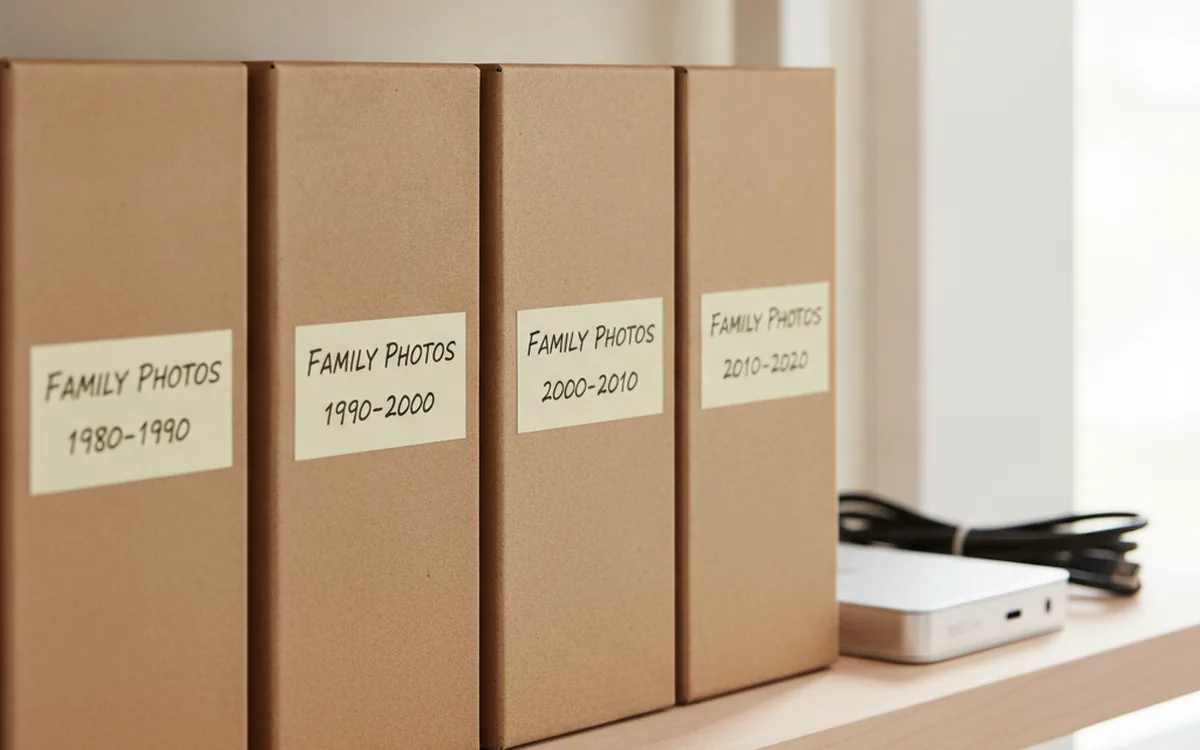
Every studio's legacy archive looks roughly the same underneath: a primary NAS, a rotation of external drives for "extra" backup, and a desktop photo catalog that hasn't been fully rebuilt since a hardware upgrade two computers ago. It works, until a drive clicks, a catalog corrupts, or someone needs a shoot from 2019 and nobody remembers which of four drives it landed on. A single physical location holding years of irreplaceable client work is a risk the business is carrying quietly, whether or not anyone's written it down.
Moving that archive to the cloud fixes the single-point-of-failure problem, but a straight file copy just relocates the mess — broken folder structures, missing metadata, and duplicate files all come along for the ride. When the migration needs more than moving bytes — a custom metadata pipeline tying the archive to an old proprietary catalog format, or an integration between cloud storage and the studio's own booking and delivery site — studios without in-house engineering typically bring in YuSMP Group's software engineering team to build the connecting pieces rather than force-fitting an off-the-shelf sync tool.
What follows is a practical path through a studio-sized migration: what tends to break, how to choose between a simple lift-and-shift and a more structured rebuild, a step-by-step plan, and what changes for security and client delivery once the archive lives in the cloud.
What Actually Breaks When You Move a Legacy Photo Archive?
A legacy photo archive breaks during migration in predictable ways, almost always tied to how long it's been accumulating files without a consistent system. The damage is usually invisible until the archive is somewhere new and someone goes looking for a specific shoot.
Hardware Failure and Bit Rot
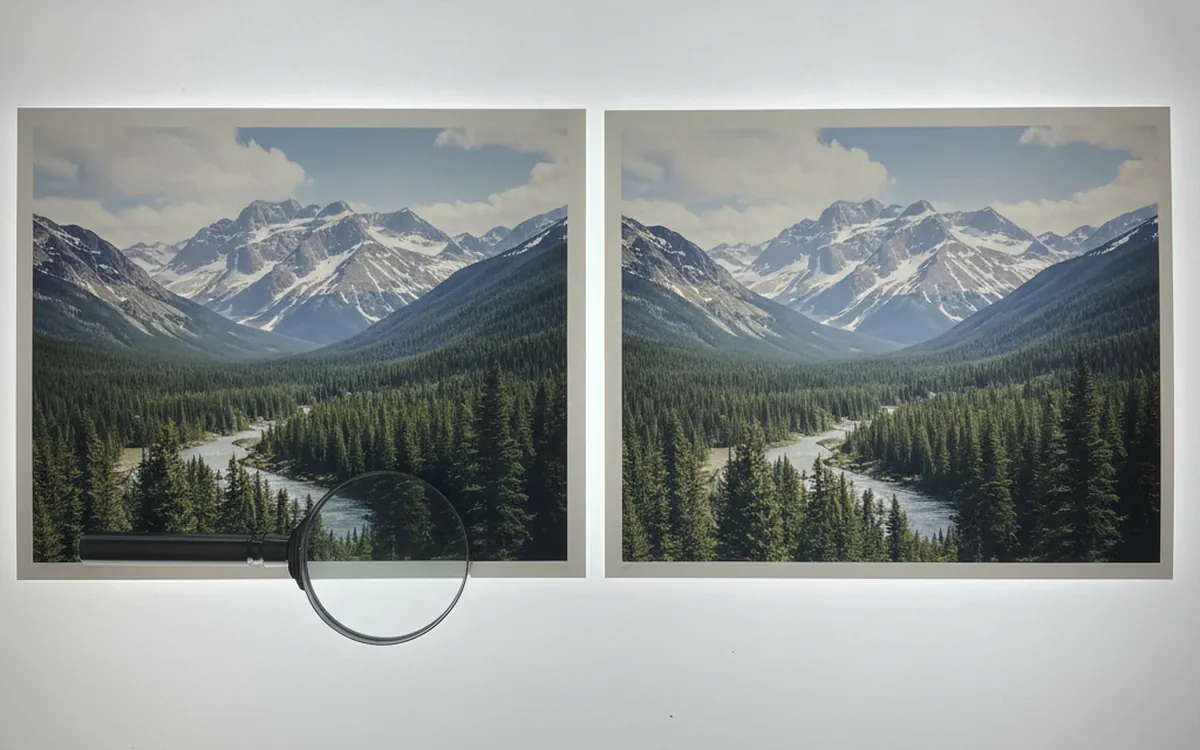
Spinning drives fail on a schedule that has nothing to do with convenience, and external drives used for "extra" backup are often the oldest, least-monitored hardware in the building. Less obvious is bit rot: silent, gradual data corruption on a drive that still mounts and still reports as healthy, where individual files slowly degrade without triggering any alert. A migration is the first time most studios actually read every file on an old drive end to end, which is exactly when bit rot surfaces — as a RAW file that opens with visible corruption instead of the shot everyone remembers.
Broken or Missing Metadata After Years of Software Changes
A ten-year-old archive has usually passed through two or three cataloging tools, a camera body change or two, and at least one "just copy everything over" migration that didn't preserve EXIF or IPTC fields correctly. Capture dates get replaced by file-copy dates, camera and lens data goes missing on anything that was converted to a different RAW variant, and keyword tags from a long-retired catalog app simply don't exist in the files themselves. None of this is visible by looking at a thumbnail grid — it only shows up once someone tries to search or sort by a field that's quietly empty.
Choosing a Migration Model: Lift-and-Shift vs. Re-Architected Archive
A migration model is the overall approach you take to moving the archive — either preserving the existing folder structure as-is, or rebuilding it around a cleaner, searchable system during the move. Which one fits depends on archive size, how broken the existing structure already is, and whether the studio needs more than basic storage once the files land in the cloud.
Lift-and-shift means uploading the existing folder structure largely unchanged, correcting only what's clearly broken along the way. It's faster and lower-risk for an archive that's already reasonably organized. A re-architected migration rebuilds the structure — consistent date-based folders, normalized metadata, a deduplicated file set — as part of the move, which costs more time upfront but leaves the studio with an archive that's actually searchable instead of just relocated.
| Criterion | Lift-and-shift | Re-architected archive |
|---|---|---|
| Data volume | Works at any size; cost scales with storage, not engineering time | Best under ~20 TB, where a full rebuild pass is still practical |
| Acceptable downtime | Minimal — files are usable in the new location almost immediately | Longer — a rebuild pass runs before the archive is considered final |
| Budget | Lower; mostly storage and transfer cost | Higher; includes time for dedup, metadata normalization, and QA |
| Existing folder structure | Already consistent and searchable | Inconsistent, mixed conventions across years, hard to search today |
| Need for a custom pipeline (DAM integration, delivery site sync) | Not required | Usually required — structure needs to be clean before it can be queried programmatically |
Most studios land somewhere between the two: lift-and-shift the bulk of the archive to stop the bleeding, then re-architect the most-used recent years where the payoff from a clean, searchable structure is highest.
A Step-by-Step Plan for a Studio-Sized Migration
A studio-sized migration — figure 5 to 15 terabytes across a decade of shoots — follows the same sequence regardless of which cloud provider or migration model you choose. Skipping a step tends to resurface it later, as a support ticket from a confused team member or a client asking for a file that technically exists but can't be found.
- Inventory the full archive. List every drive, NAS volume, and old backup location, and get a real total size and file count. You can't plan transfer time or cloud storage cost against a guess.
- Deduplicate before uploading. Run duplicate detection across the inventory first — uploading duplicates and sorting them out afterward wastes both bandwidth and the storage bill. See the deduplication section below for what to look for specifically in a legacy archive.
- Normalize metadata. Fix capture dates, restore camera and lens fields where recoverable, and standardize any keyword or project tagging before the files move, since re-tagging is far more tedious once everything is one flat structure in a cloud bucket.
- Decide on folder structure and naming. Lock in the convention — date-first folders, consistent file naming — before the bulk transfer starts, not after, so files don't need a second pass once they're already uploaded.
- Run a pilot migration. Move a few hundred gigabytes — one representative year or client — first. Verify every file opens, metadata survived, and nothing silently truncated during transfer before committing the rest of the archive.
- Transfer the full archive with integrity checks. Use checksums (not just file size and count) to confirm every file arrived intact, especially for large RAW files where a partial upload can look deceptively complete.
- Keep the old archive live until the new one is verified. Don't wipe the original drives the week of the migration. Run both in parallel for at least a month, with the cloud copy as the active one, before decommissioning the old hardware.
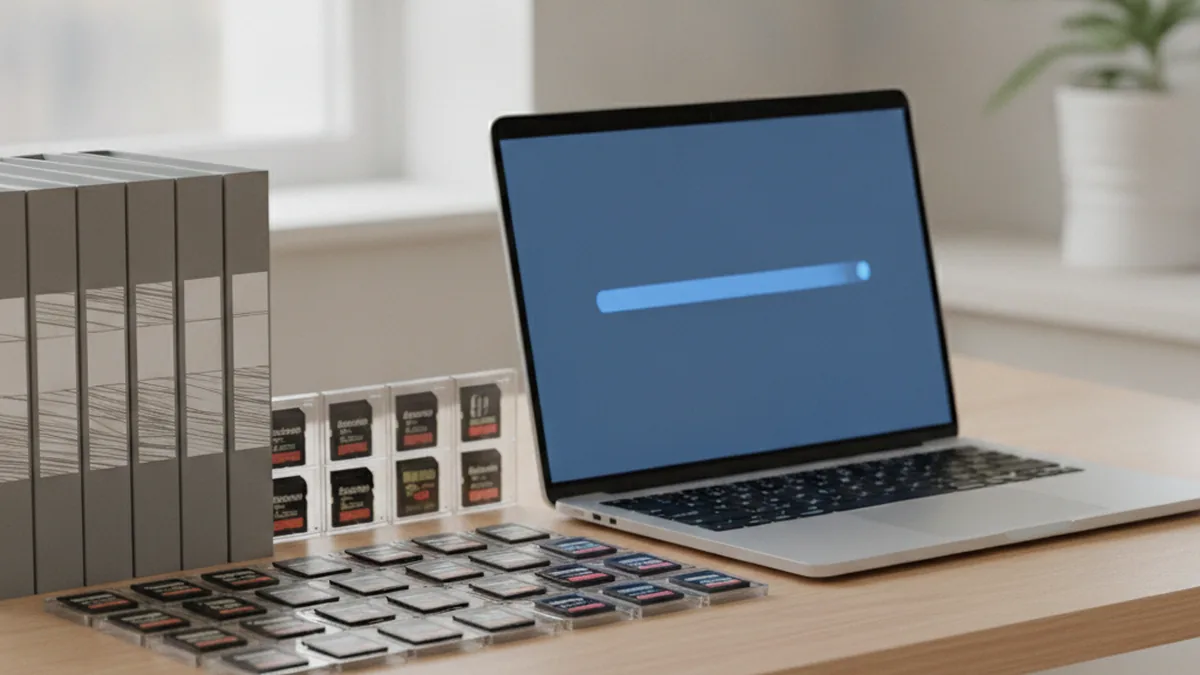
Handling Metadata and Duplicates During the Move
Metadata and duplicate cleanup for a legacy studio archive is fundamentally different from tidying up a personal photo library — the volume is larger, the history of tools touching the files is longer, and the cost of getting it wrong shows up as billable time lost searching for a shot a client is waiting on.
On a typical archive that's accumulated for ten or more years across multiple cataloging tools, it's common to find that 15-30% of files have incomplete or incorrect EXIF fields — most often capture date (overwritten by a copy operation) and camera/lens data (lost in an old format conversion). A migration is the natural checkpoint to fix this, because touching every file once to move it costs little extra to also touch it once to repair its metadata, versus a separate project later that has to re-open the same files all over again.
Duplicates in a legacy archive aren't just exact copies — they're the accumulated residue of years of "just copy it to the other drive to be safe" backup habits: a JPEG export sitting next to the RAW it came from, a folder that got copied twice during a hardware swap, a client-delivery set that duplicates files already in the main archive under a different naming scheme. If you haven't run a structured pass yet, this guide to finding duplicate photos walks through checksum and perceptual-hash detection in more depth. And if the archive has never had a real folder system imposed on it at all, organizing a photo archive covers the date-and-event structure worth adopting before or during the move.
Security and Access Control After Migration
Security after a cloud migration is the set of controls that decide who can read, edit, or delete the archive once it's no longer sitting on a drive in a locked office — and it needs deliberate setup, because cloud storage defaults are rarely right for a studio with employees, contractors, and clients all needing different levels of access.
Three things matter most in practice. Encryption should cover data both in transit during the upload and at rest in storage — most major providers handle this by default, but it's worth confirming rather than assuming. Access control should be role-based rather than one shared login: a retoucher needs write access to specific project folders, a client needs read-only access to their own delivery set, and nobody outside the core team needs access to the full archive. Version history matters more in the cloud than it did locally, because an accidental overwrite or deletion is now one click instead of requiring physical access to a drive — keeping a reasonable retention window on version history turns a mistake into a two-minute recovery instead of a lost file.
Client Delivery and Team Access in the New Cloud Setup
Client delivery and team access describe how people outside the core archive actually touch the files day to day, and a migration is the moment to fix whatever was awkward about the old setup rather than recreating it in a new location.
Under the old NAS-and-drives setup, client delivery usually meant a separate export step: pulling selects onto a thumb drive, uploading to a third-party gallery tool, or emailing a zip file — all disconnected from the actual archive. Once the archive lives in the cloud, delivery can become a scoped view into the real files instead of a copy of them: a client gets a link to their project folder with read-only access, and there's no separate "delivery export" to keep in sync with the archive. For the team, the same shift applies to collaboration — an assistant editor working from home gets the same access they'd have on the studio network, without a VPN or a physically shared drive, as long as the role-based access from the security setup above is configured correctly from day one.
When a Legacy Archive Needs More Than a Storage Swap
For a lot of studios, the plan above — inventory, dedup, normalize, migrate, verify — is the whole project, and a well-organized cloud bucket with sensible folders is genuinely enough. The line gets crossed when the archive needs to talk to something else: a booking and delivery website that should pull directly from the archive instead of a manually maintained export folder, a proprietary catalog format from a discontinued desktop tool that needs a custom reader before its metadata can be recovered at all, or search and tagging across tens of thousands of files that a flat folder structure simply can't support without an actual index behind it.
That's the point where "move the files" turns into "build the pipeline that connects the files to the rest of the business," and it's a different kind of work than running a migration tool. Studios that hit this wall are usually better served scoping it as its own small engineering project rather than trying to stretch a storage migration to cover it.
Frequently Asked Questions
How long does migrating a studio-sized photo archive actually take?
For an archive in the 5-15 TB range, plan on two to six weeks: a week for inventory and deduplication, a pilot migration of a few hundred gigabytes, then the full transfer running in the background over days while uploads compete with normal bandwidth.
Can I migrate RAW files without losing original metadata?
Yes, but only if the migration tool reads and rewrites EXIF/IPTC fields explicitly rather than relying on a generic file copy, and if any format conversion step is verified to carry metadata forward before the originals are deleted.
What happens to duplicate files during migration?
Run deduplication before the transfer, not after. Uploading duplicates first and sorting them out in the cloud wastes bandwidth and storage cost, and near-duplicates from old backup habits are easy to miss once everything looks the same in a flat cloud bucket.
Do I need to re-tag everything after moving to the cloud?
No, if metadata was normalized during migration. Cloud platforms index whatever EXIF/IPTC fields are present at upload time, so fixing broken or missing tags before the transfer avoids a second, much larger retagging project afterward.
Is a phased migration safer than a one-time cutover?
For any archive past a few hundred gigabytes, yes. A phased migration lets you validate integrity on a pilot batch, catch metadata or format problems early, and keep the old archive live as a fallback until the new one is proven.
What's the biggest mistake studios make when moving a legacy archive?
Treating the move as a pure file copy. A legacy archive carries years of inconsistent naming, partial metadata, and undetected duplicates, and copying that mess into the cloud as-is just makes it a more expensive mess to search through later.
Does cloud storage replace the need for a local backup?
No. Cloud storage should be one leg of a 3-2-1 backup strategy, not the only copy — a studio still needs a second, independent copy so a billing lapse, account lockout, or provider outage isn't a single point of failure. For general best practices on moving large datasets into cloud storage, Google Cloud's migration best-practices guide is a useful reference beyond the photo-specific concerns covered here.
The Bottom Line
A legacy photo archive migration succeeds or fails on the steps most teams are tempted to skip: a real inventory, deduplication before upload, metadata fixed once instead of twice, and a pilot run before committing the whole archive. Do that groundwork, and the cloud move itself is mostly a matter of patience while the transfer runs. Skip it, and the archive arrives in its new home just as hard to search as it was on the old drives — only now it's also costing a monthly storage bill.