“What should I save this as?” feels like a trivial question until you answer it a hundred times a day. Save a screenshot with text as a JPEG and the letters pick up a muddy halo. Save a photo as a PNG and it weighs several times more than it should. Save a logo as a GIF and it gets jagged edges on a colored background. Each mistake is small, but together they eat disk space, bandwidth, and quality.
The choice gets much easier once you stop looking at the file extension and look at three properties instead: how the format compresses data (lossy or lossless), whether it supports transparency, and how much color information it stores. After that, the only question left is compatibility: who will open the file, and with what.
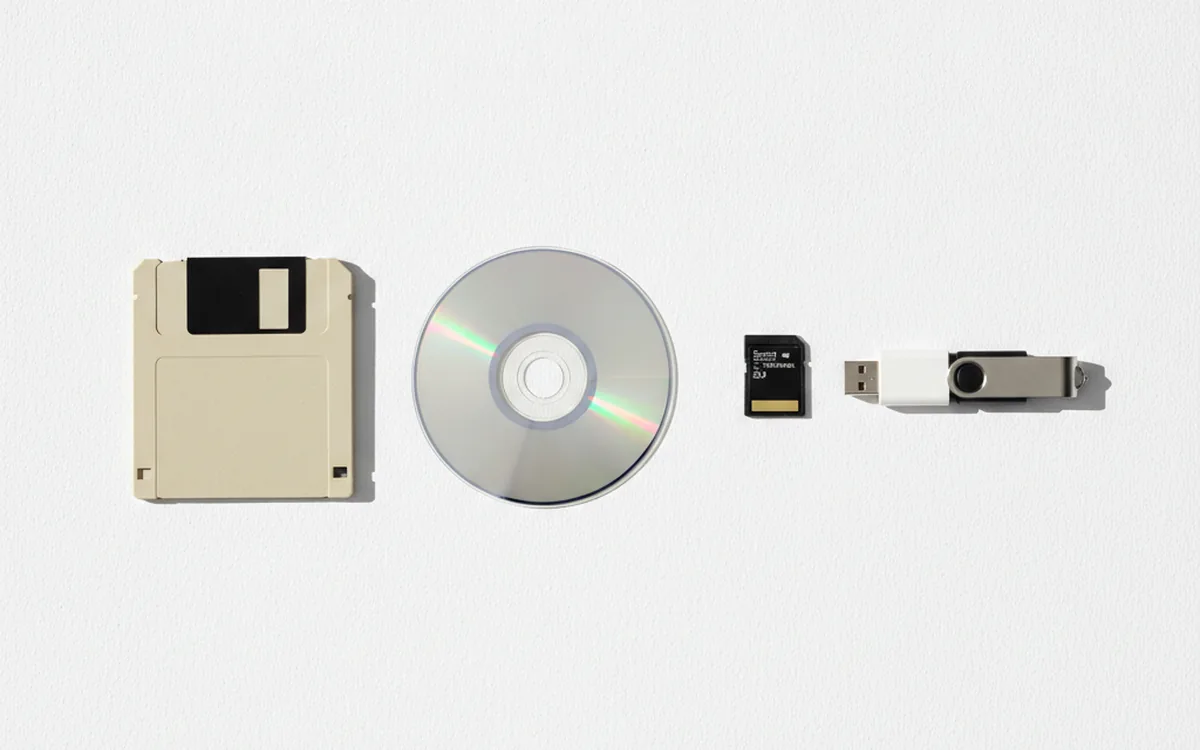
Legacy formats are a story of their own. BMP, PCX, TGA, and Windows metafiles still live in company archives, on clip art CDs, and in old project folders, and they regularly need to be converted into something modern.
Photos: JPEG, WebP, and AVIF
Photos almost always call for lossy compression. It throws away detail the eye barely notices and shrinks files by a wide margin.
JPEG
The most compatible format in existence. Every camera, phone, browser, printer, and email client can open it. Its limits are well known: 8 bits per channel, no transparency, and every lossy re-save adds artifacts. JPEG is great as a final delivery file and poor as a working file you edit over and over.
- When sending files to a client or a print lab, use a high quality setting.
- For thumbnails and galleries, you can lower the quality: at small sizes the difference is invisible.
- Don’t save UI screenshots, diagrams, or text as JPEG: the edges of the letters will grow a halo.
WebP
A format built for the web. It supports both lossy and lossless compression, along with transparency and animation. At comparable quality, a WebP photo is usually smaller than the same JPEG. Modern browsers support it, but older image viewers and editors may not open it, so for sharing files outside a website, JPEG is still the safer bet.
AVIF
The youngest of the popular formats, based on the AV1 video codec. It compresses even more tightly and supports 10 and 12 bits per channel plus high dynamic range. The trade-off: encoding is noticeably slower, and desktop app support is still uneven. A sensible approach for websites is to serve AVIF or WebP to browsers that understand them and keep JPEG as a fallback.
Graphics, Text, and Transparency: PNG and GIF
When crisp edges and exact colors matter, you need a lossless format.
PNG
PNG compresses without loss, stores a full alpha channel with smooth transparency, and supports 8 and 16 bits per channel. It’s the right choice for screenshots, interfaces, diagrams, raster logos, and any graphic that contains text. For photos, PNG is overkill: the file comes out heavy with no visible benefit.
GIF
GIF is limited to a 256-color palette and all-or-nothing transparency with no partial opacity. It’s a poor fit for photos, and PNG replaced it for static graphics long ago. GIF still holds on in short animations, mostly out of habit and compatibility: in terms of file size, an animated WebP or a short video usually wins.
- Screenshot, diagram, icon: PNG.
- Logo on a transparent background for a website: PNG or lossless WebP, or better yet a vector SVG if you have one.
- A short loop for a messaging app: GIF for compatibility; WebP for a website.
Print and Archiving: TIFF
TIFF remains the workhorse of print production and archives. It stores 8 and 16 bits per channel, supports the CMYK color model, allows lossless compression (LZW, ZIP), and can hold multiple pages in one file. Scanned documents, master copies of photos after RAW processing, files for the print shop: all of this is natural TIFF territory.
The downsides are clear too. Files are large, browsers don’t display them, and the format’s flexibility sometimes works against it: a TIFF saved with exotic compression or one app’s layers may be read incorrectly by another. For archiving, stick to the simple variants: no layers, and either LZW compression or none at all.
Legacy Formats: What They Are and Why to Convert Them
Old files are rarely “just junk.” They’re scans from the nineties, illustrations from long-gone catalogs, game textures, clip art from office suites. The problem is that fewer and fewer programs can open them, and thumbnail previews in your file manager often don’t work at all.
BMP
The native Windows raster format. It usually stores data uncompressed, so files are huge even at modest resolutions. Almost everything can open it, but it’s an inefficient way to store images. It converts to PNG with zero loss, and the file size typically drops several times over.
PCX
A format from a DOS-era paint program that uses simple run-length encoding. You’ll find it in old archives of scans and faxes and in the resources of early software. Modern editors support it less and less. The logical path: PNG for graphics and document scans, JPEG for any photos that ended up saved as PCX.
TGA
Truevision’s format, long popular in video production and games because it got an alpha channel early on. In archives, TGA files are usually animation frames, textures, and titles. When converting, make sure you don’t lose the transparency: convert to PNG, not JPEG.
WMF and EMF
Windows metafiles: vector graphics that fill old clip art collections and office suite documents. Because they’re vector-based, you have to pick a size up front when you rasterize them. A metafile converted to a small PNG can’t be enlarged later without losing sharpness.
Practical tip: before converting an old archive, make a full copy of the source folder and convert only the copy. Convert raster formats losslessly to PNG or TIFF, rasterize metafiles with plenty of headroom on size, and don’t delete the originals until you’ve spot-checked the results in every subfolder.
How to Convert an Archive in Bulk
When you have hundreds of old files, manually opening each one and clicking “Save As” turns into a week of work. A batch workflow in PhotoBatch handles it in a single pass:
- Find every image of the types you need. The image file search utility will collect them from all subfolders of the selected drive.
- Set up the workflow: open the file, adjust the size or color depth if needed, and save it in the target format.
- Send the output to a new folder that mirrors the structure of the source.
- If the names are old and cryptic (like IMG0001.PCX), add a renaming step with a meaningful prefix.
- After conversion, run DupDetector: in old archives, the same image often sits in three formats across five folders.
This sequence gives you a result you can verify: the originals stay untouched, the new structure matches the old one, and duplicates surface before they make it into your backups.
The Bottom Line
For photos, use JPEG for compatibility, and WebP or AVIF with a JPEG fallback on the web. For graphics, text, and transparency, use PNG. For print and master copies, a simple TIFF does the job. Don’t throw away old BMP, PCX, TGA, and metafiles: batch-convert them to PNG or TIFF and keep the originals until you’ve checked the results.