Prismatic Software Editorial Team
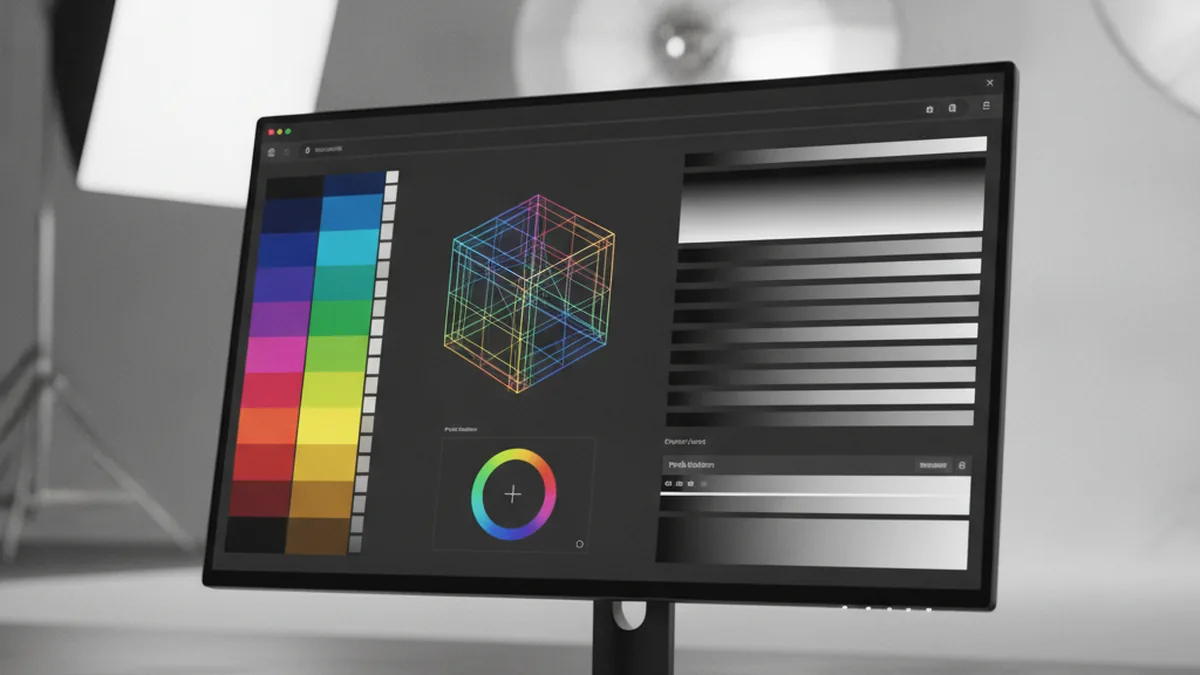
TL;DR: Desktop photo apps inherit accurate color handling from the operating system's color pipeline; browsers don't have an equivalent, so Canvas and WebGL draw pixels as raw RGB with no ICC profile applied. That causes visible shifts between Chrome, Safari, and Firefox, and worse ones on wide-gamut displays. Fixing it means converting and embedding profiles before pixels reach the browser, using CSS's limited wide-gamut support where it fits, and falling back to server-side rendering for anything the client can't handle accurately.
Desktop photo-editing software has never had to think very hard about color management. The operating system's color pipeline reads a monitor's profile, honors an image's embedded ICC profile, and applies the right rendering intent when converting between spaces — all before the application ever draws a pixel. A photo tool built for Windows or macOS gets that infrastructure for free.
None of it exists in a browser. The moment a desktop photo-processing tool moves to the web, color management stops being infrastructure you inherit and becomes a problem you have to engineer yourself — which is one of the sharper edges teams hit when they plan a desktop-to-web migration with a web development team like YuSMP Group's, because it's rarely visible in a feature spec until real images start rendering differently across browsers.
This isn't a guide for photographers adjusting a slider. It's for engineers who need to know exactly where color accuracy breaks when a photo workflow moves into the browser, and which patterns actually hold up in production.
Why Color Management Is Easy on Desktop and Hard on the Web
What desktop apps get "for free" from the OS color pipeline
On Windows and macOS, the operating system maintains a color-managed graphics pipeline: it tracks the active display's ICC profile (ideally from a real calibration, not a generic default), reads the embedded profile in an image file, and performs the color-space conversion using an explicit rendering intent before compositing anything to screen. A desktop photo app calls into this pipeline rather than reimplementing it. Open the same JPEG with an embedded Adobe RGB profile in two different desktop apps on a properly profiled monitor, and the color should match, because both apps are deferring to the same OS-level color engine.
What browsers don't give you
Browsers have no equivalent system-level color engine exposed to web content. There is no API that says "treat this display as a measured, profiled output device and convert every pixel accordingly." Some browsers apply a best-effort conversion when displaying a plain <img> tag with an embedded profile; almost none of that effort carries over once pixel data moves into a <canvas> or a WebGL texture, which is exactly where image processing happens in a photo-editing web app.
Where Color Breaks When You Move a Photo App to the Browser
Canvas and WebGL don't apply ICC profiles automatically
Draw an image onto a <canvas> element, and the browser typically decodes it into raw sRGB-interpreted RGB values, discarding whatever color-space information or rendering intent the embedded profile carried. WebGL goes further: it treats texture data purely as numbers and performs no profile-aware conversion at all. If your editing pipeline reads pixel data back out of a canvas or GPU texture — which most browser-based photo editors do — it is working with color that has already silently lost its profile.
Inconsistent color across Chrome, Safari, and Firefox
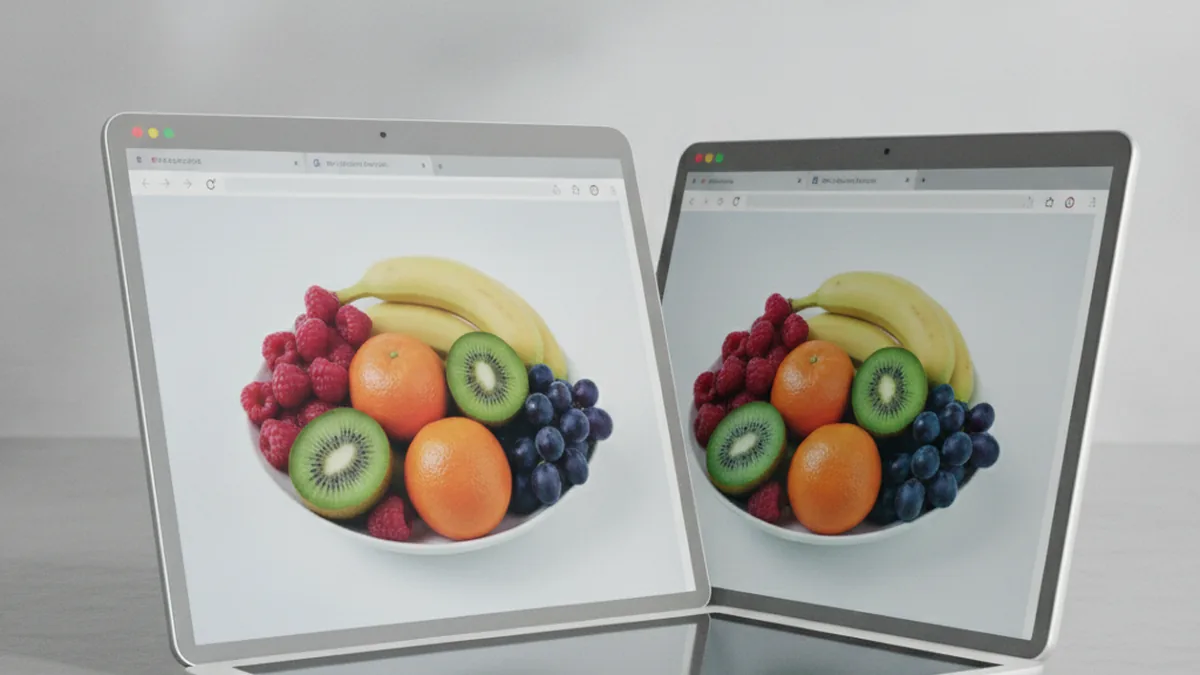
Because there's no shared browser standard for how much profile-awareness to apply before pixels hit a canvas, engines differ. The same source file with the same embedded profile can render with a visible shift between Chrome and Safari, particularly on anything outside plain sRGB. For a photo tool, this isn't a cosmetic detail — it means a user's edit can look correct in the browser they tested in and wrong in the one their client opens.
Wide-gamut displays (Display P3) vs. sRGB assumptions
Most web color handling still assumes an sRGB display. Modern laptops and phones increasingly ship with wide-gamut Display P3 panels, and an sRGB-tagged pixel rendered naively on a P3 display can appear desaturated, while an untagged pixel can be over-saturated. CSS Color 4 added a color() function and a color-gamut media query specifically to let authors target P3, but that coverage is thin compared to a desktop OS color pipeline and doesn't extend into canvas or WebGL rendering by itself. The MDN reference for color-gamut documents exactly how far that detection goes and where it stops.
Engineering Patterns That Keep Color Accurate in a Web Photo Workflow
Converting and embedding profiles before the browser touches the pixels
The most reliable fix is upstream of the browser entirely: normalize color before pixel data ever reaches canvas or WebGL. That typically means converting uploaded images to sRGB (the one space every rendering path treats predictably) while keeping the original embedded profile available as metadata, so a conversion decision is explicit rather than left to whatever the browser happens to assume.
Using CSS color() / color-gamut media queries for display-aware rendering
Where a workflow needs to go beyond sRGB — previewing wide-gamut source material, for instance — the color-gamut media query can detect a P3-capable display, and the color() function can express colors in display-p3 directly in CSS. This covers static UI chrome and simple previews reasonably well; it does not extend to pixel manipulation inside canvas or WebGL, where you're still responsible for your own color math.
Server-side rendering/transcoding as a fallback for unsupported clients
For operations where client-side color accuracy can't be guaranteed — an older browser, an edge case in profile handling, or an export that has to match a specific output profile exactly — rendering or transcoding the final result server-side with a full color-management library sidesteps the browser's limitations entirely. The client previews an approximation; the server produces the authoritative, color-accurate file.
| Stage | Desktop color pipeline | Web color pipeline | Risk if unmanaged |
|---|---|---|---|
| Display profiling | OS reads monitor's ICC profile automatically | No system API; color-gamut only signals wide-gamut support | Colors render assuming a generic sRGB display |
| Image decode | OS pipeline honors embedded profile | Partial, inconsistent support for <img>; none guaranteed in canvas/WebGL | Profile silently discarded on decode |
| Pixel editing | App works in a defined working space | Canvas/WebGL treat data as raw RGB numbers | Edits compound color error invisibly |
| Cross-engine rendering | Same OS pipeline for every app | Chrome, Safari, Firefox each decide independently | Same file looks different per browser |
| Output/export | Explicit conversion to target profile | Must be engineered per path, often server-side | Delivered file doesn't match what the editor showed |
Soft Proofing and Calibration — What's Realistic in a Browser Today
Soft proofing on desktop simulates how an image will look under a specific output profile — a particular printer and paper combination, for example — by having the OS color engine apply that profile's characteristics to the on-screen preview in real time. Browsers have no equivalent engine to call into, so a literal, live soft-proof toggle isn't something you can build the same way. The practical substitute is pre-computing the proofed version server-side (applying the target profile's conversion to a copy of the image) and serving that as a static preview the client can toggle to, rather than attempting to simulate the conversion live in the browser. Monitor calibration has the same ceiling: a web app can ask a user to self-report their display type or detect color-gamut support, but it cannot read or apply an actual calibration profile the way desktop color-management software can.
A Practical Checklist Before You Ship a Web-Based Photo Tool
- Decide your canonical working color space (almost always sRGB) and normalize uploads to it explicitly, rather than letting each browser infer it differently.
- Keep the original embedded ICC profile as metadata even after converting to the working space, so you can offer accurate export later.
- Test the same source file's rendered output in Chrome, Safari, and Firefox before launch — don't assume cross-engine parity.
- Audit every point where pixel data passes through canvas or WebGL and confirm you know what color assumption is being made there.
- Use
color-gamutmedia queries to detect wide-gamut displays where it affects UI decisions, but don't rely on CSS alone for pixel-level accuracy. - Build server-side rendering as the authoritative path for exports and proofs, not just client preview.
- Document which conversions are lossy and where, so support tickets about "the colors look wrong" have a clear place to start.
- Re-test after any browser engine update; color-handling behavior in Chromium, WebKit, and Gecko has changed before without a major version bump being the trigger.
When to Build This In-House vs. Bring In a Web Engineering Team
A narrow slice of this problem — normalizing uploads to sRGB and keeping embedded profiles as metadata — is reasonable for most product teams to build themselves. The harder slice — consistent cross-browser rendering, wide-gamut support, and a server-side proofing/export pipeline that matches desktop-grade accuracy — is where the engineering cost climbs fast, and where teams migrating a desktop photo tool to the web often find it cheaper to bring in outside web engineering expertise than to solve every browser inconsistency solo, especially on a launch timeline.
Frequently Asked Questions
Does CSS alone support ICC color profiles?
No. CSS Color 4's color() function and the color-gamut media query let you target wide-gamut spaces like Display P3, but neither implements a full ICC color-management pipeline with rendering intents and profile conversion the way a desktop OS color engine does.
Why do my photos look different in Chrome vs Safari?
Browsers differ in how consistently they honor embedded ICC profiles and map untagged color into the display's gamut, so the same pixel data can render with a visible shift between engines.
Can I do real soft proofing in a browser?
Only in a limited sense. Browsers have no system-level color engine to simulate an output profile on screen, so soft proofing in a web app usually means pre-rendering a simulated conversion server-side rather than toggling a live proof.
Should I convert images to sRGB before uploading to a web app?
In most cases yes, with the original embedded profile kept as a fallback, since sRGB is the one color space every browser and display renders predictably.
Does WebGL respect ICC profiles?
No, not by default. WebGL treats pixel data as raw RGB values and draws them to the canvas without applying any color-profile conversion, which is why GPU-accelerated editing needs its own color-management layer.
Is it worth building web-based color management in-house?
It depends on scale and timeline. A narrow, well-scoped implementation is reasonable to build in-house; a full cross-browser, wide-gamut pipeline is often cheaper to bring in a web engineering team for than to build and maintain solo.